Understanding the Fix Songs Results
When Fix Songs has finished, SongKong opens a report showing what it found and what it changed, or what it would change if you are using Preview Only .
You do not need to understand every part of the report before continuing. For your first few albums there are just a few things worth checking.
Start with the Summary
The Summary gives you an overview of what happened.
It shows how many songs SongKong processed, how many it was able to identify, and how many files would be changed.
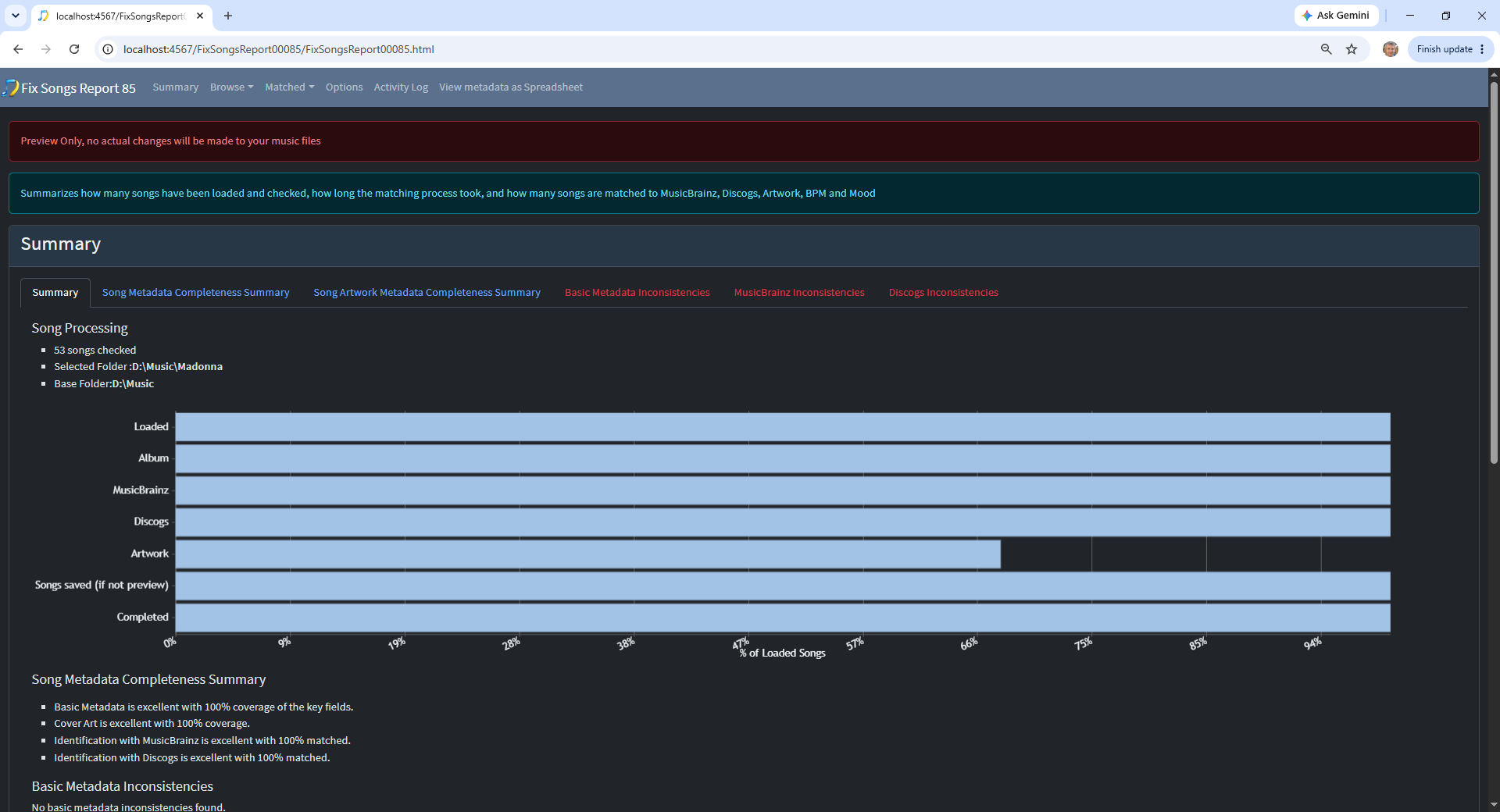
Don’t worry if SongKong has not identified every song. SongKong will only make an album match when it is sufficiently confident that it has found the correct album.
Check your albums
A good way to check the results is to use Browse by Album or Browse by Folder .
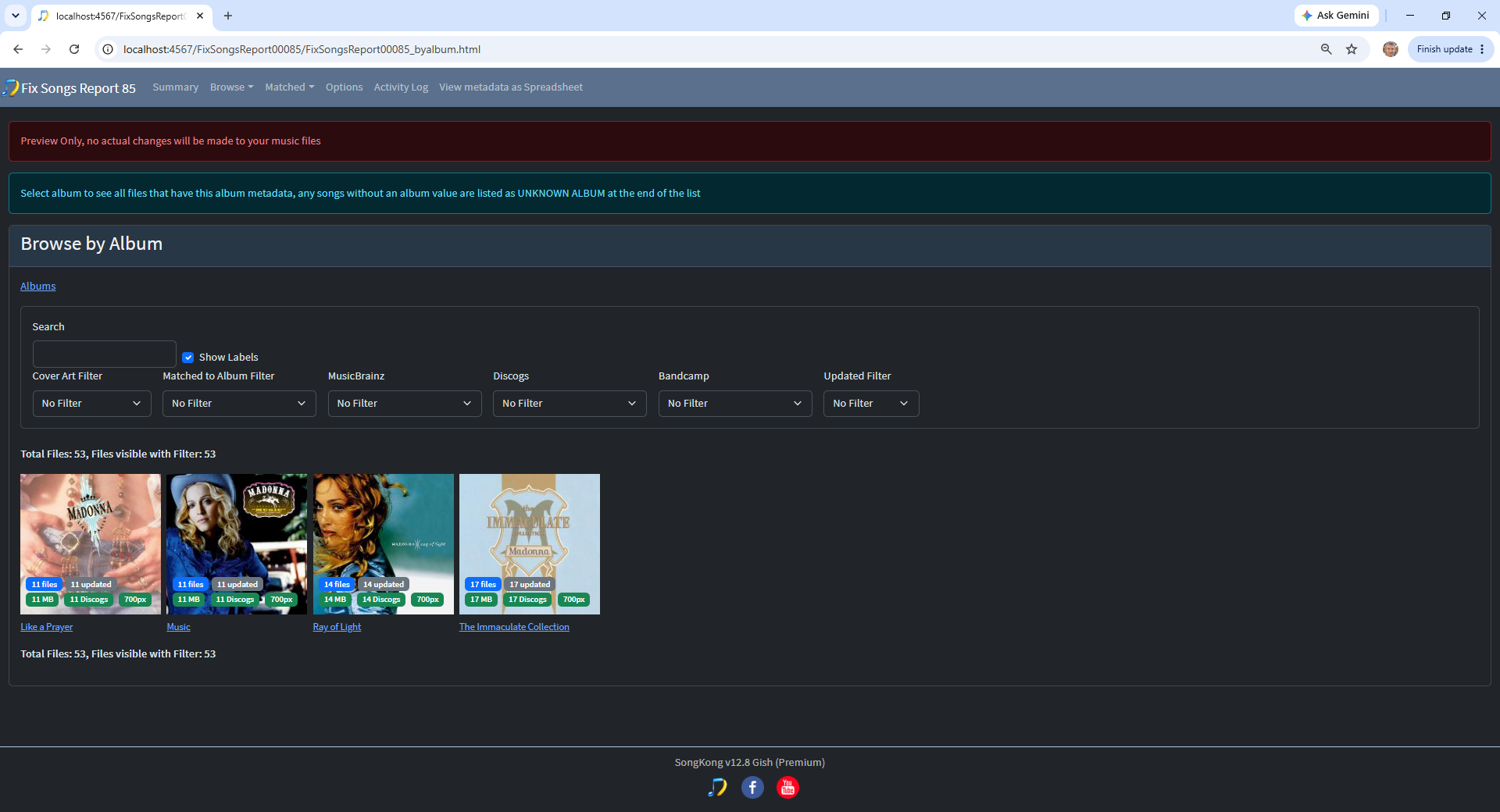
Select one of the albums that you processed.
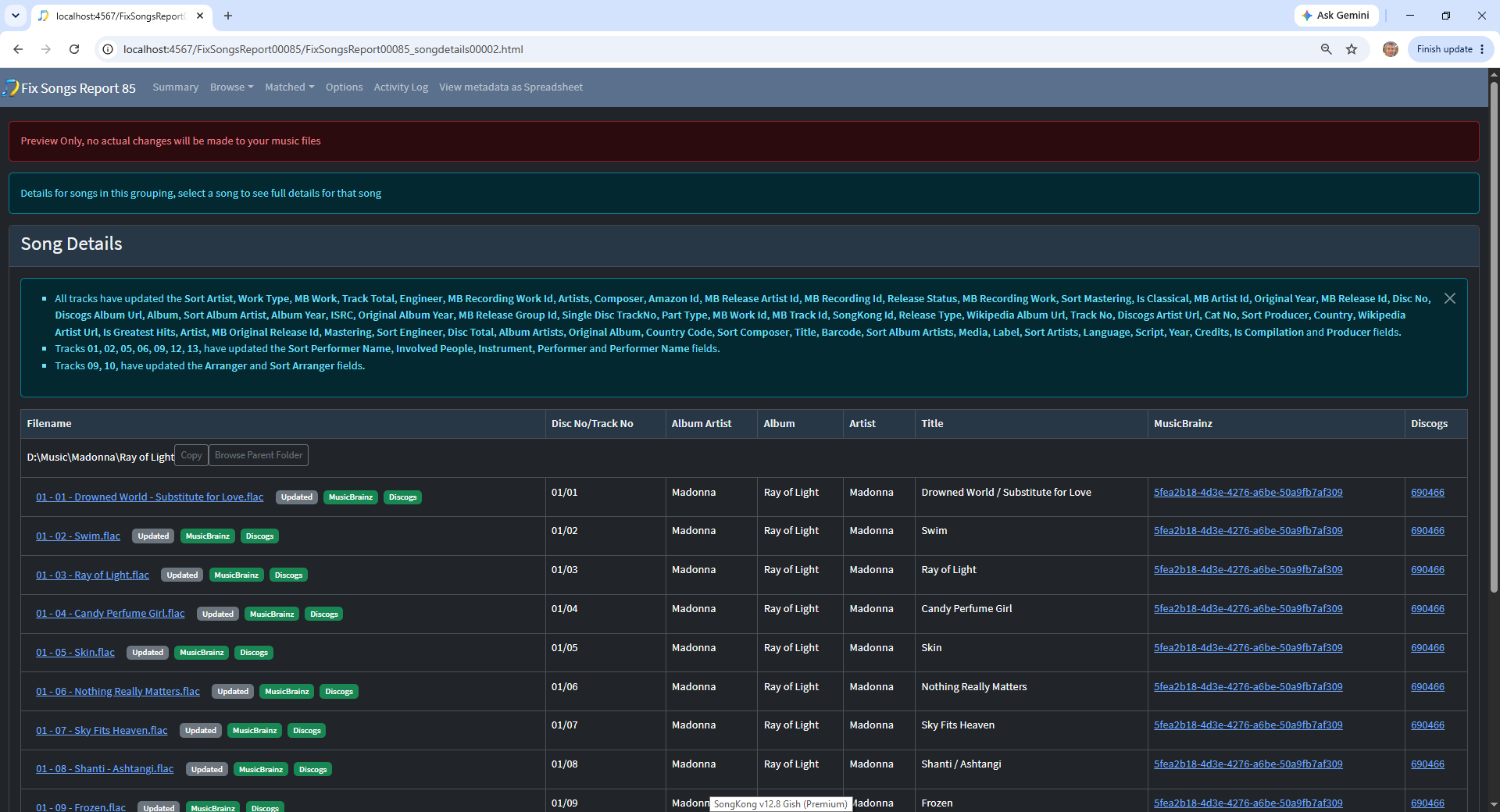
You can now quickly check that:
- The Album and Album Artist look correct
- The song titles and track numbers look correct
- The songs have been matched to the same album
- The artwork looks appropriate
If these look sensible, that is a good indication that SongKong has correctly identified the album.
Look at an individual song
Select a song to see its full details.
For a Fix Songs report, SongKong shows which fields have changed.
- White - the value has not changed
- Green - an existing value has been modified
- Yellow - a new value has been added
- Red - an existing value has been removed
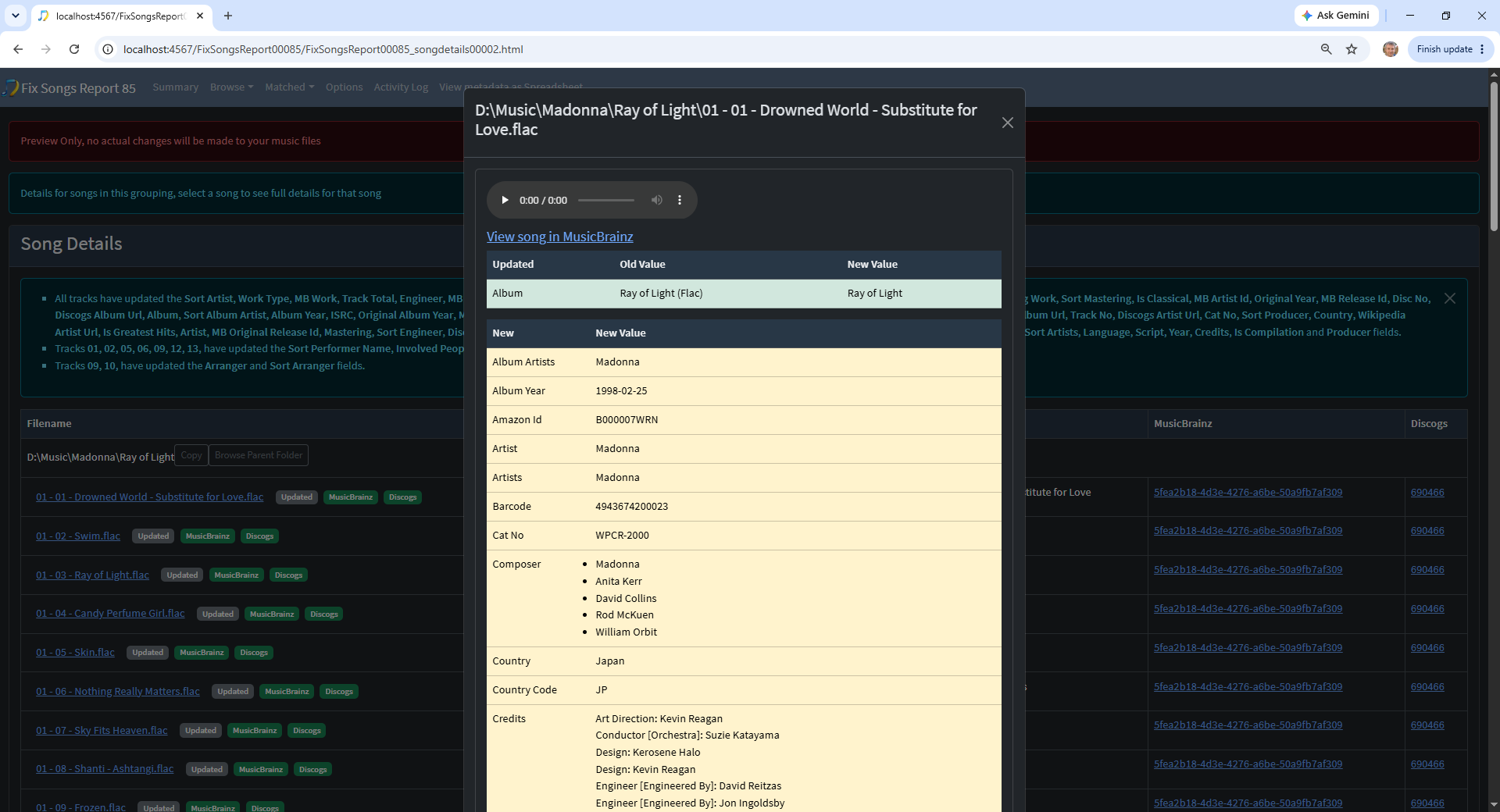
This lets you see exactly what SongKong is proposing to do to your music.
You do not need to check every field of every song. Usually, checking a few albums and songs is enough to make sure the results are what you expect.
What does “matched” mean?
SongKong uses online music databases and audio fingerprints to identify your music.
Where possible, SongKong tries to identify the particular album release that your songs came from. This allows it to add consistent album information, track numbers, artwork and other metadata.
Sometimes SongKong can identify an individual song but cannot confidently identify the album it belongs to. You may therefore see some songs described as matched to a song rather than an album.
There are more detailed sections of this guide explaining the different types of matches, but you do not need to understand them to get started.
If you used Preview Only
If Preview Only was enabled, none of these changes have been written to your music files.
This gives you the opportunity to check the results before making any changes.
If you are happy with the preview results, select Apply Preview . SongKong will apply the changes already calculated by the preview, without having to run the original task again.
This is quicker than running the task again and avoids the possibility of the matching process producing different results on a second run.
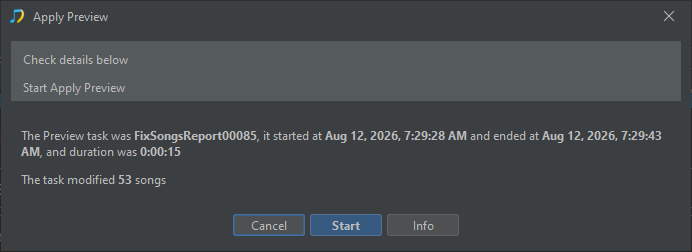
And SongKong will then make the changes shown in the report.
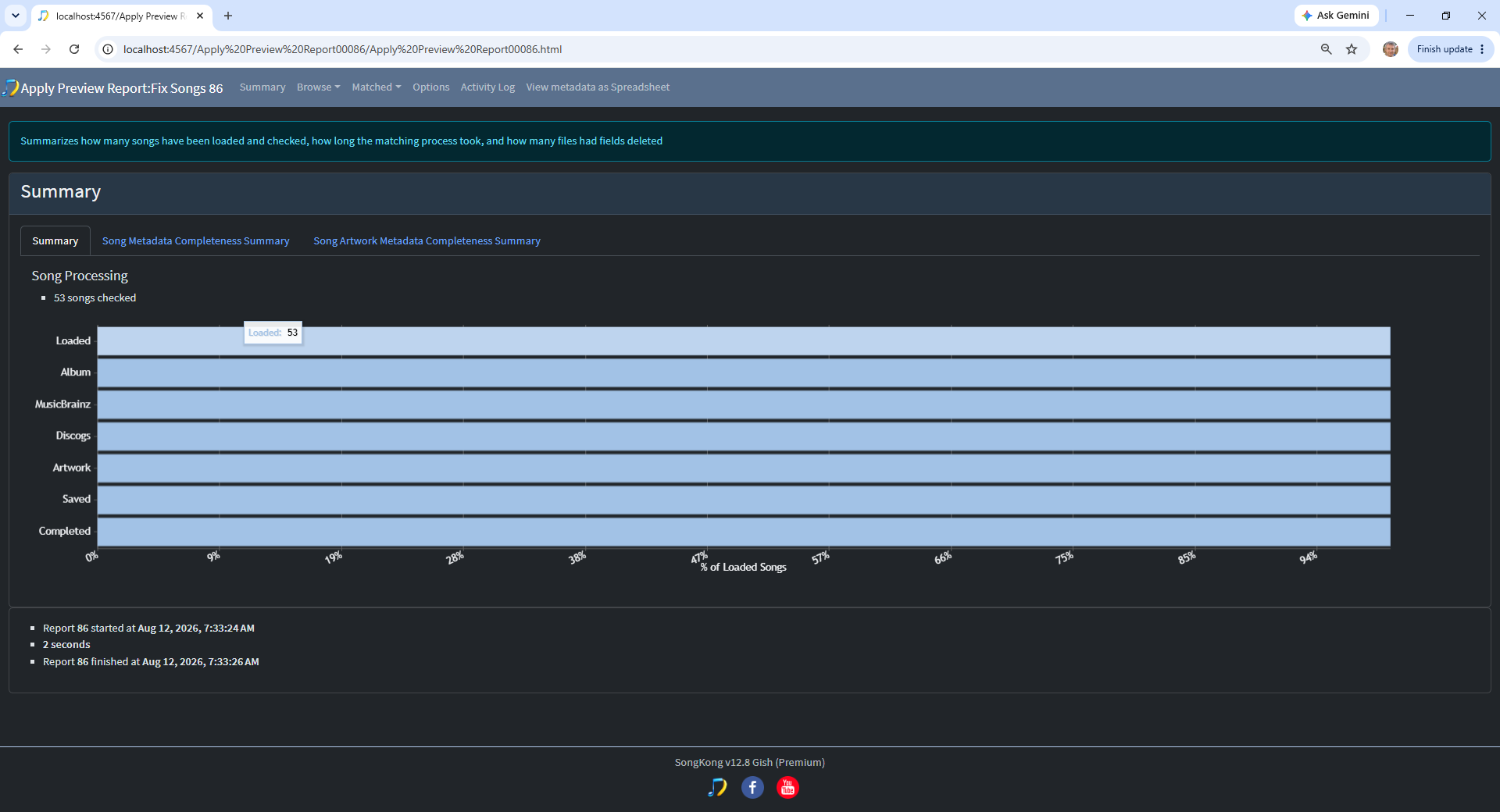
Alternatively run Fix Songs again with Preview Only disabled.
If something doesn’t look right
Don’t process your whole collection until you are happy with the results from your test albums.
If SongKong is changing something you would prefer it to leave alone, you can change the Fix Songs options to control which metadata is added or modified.
The detailed Fix Songs sections of this guide explain these options.
Ready for your music collection?
Once you have successfully processed a few albums and are comfortable with the results, you can select a larger folder or your complete music collection and run Fix Songs in the same way.