Textual metadata is grouped logically over a number of tabs, such as the Songs tab
Editing
Arrow keys navigate between fields, selected field highlighted with white border
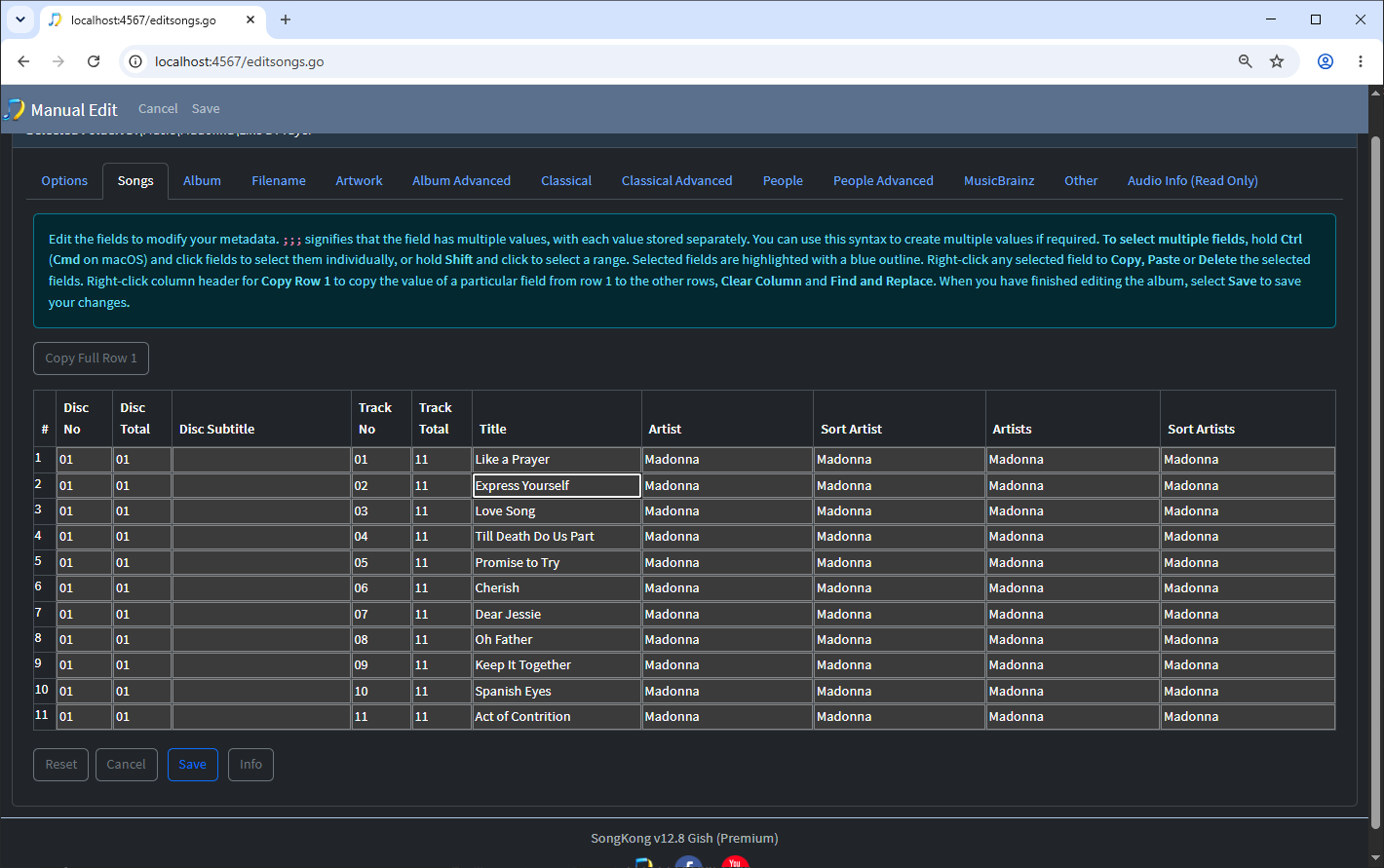
To start inline editing select Enter, field now highlighted with yellow border
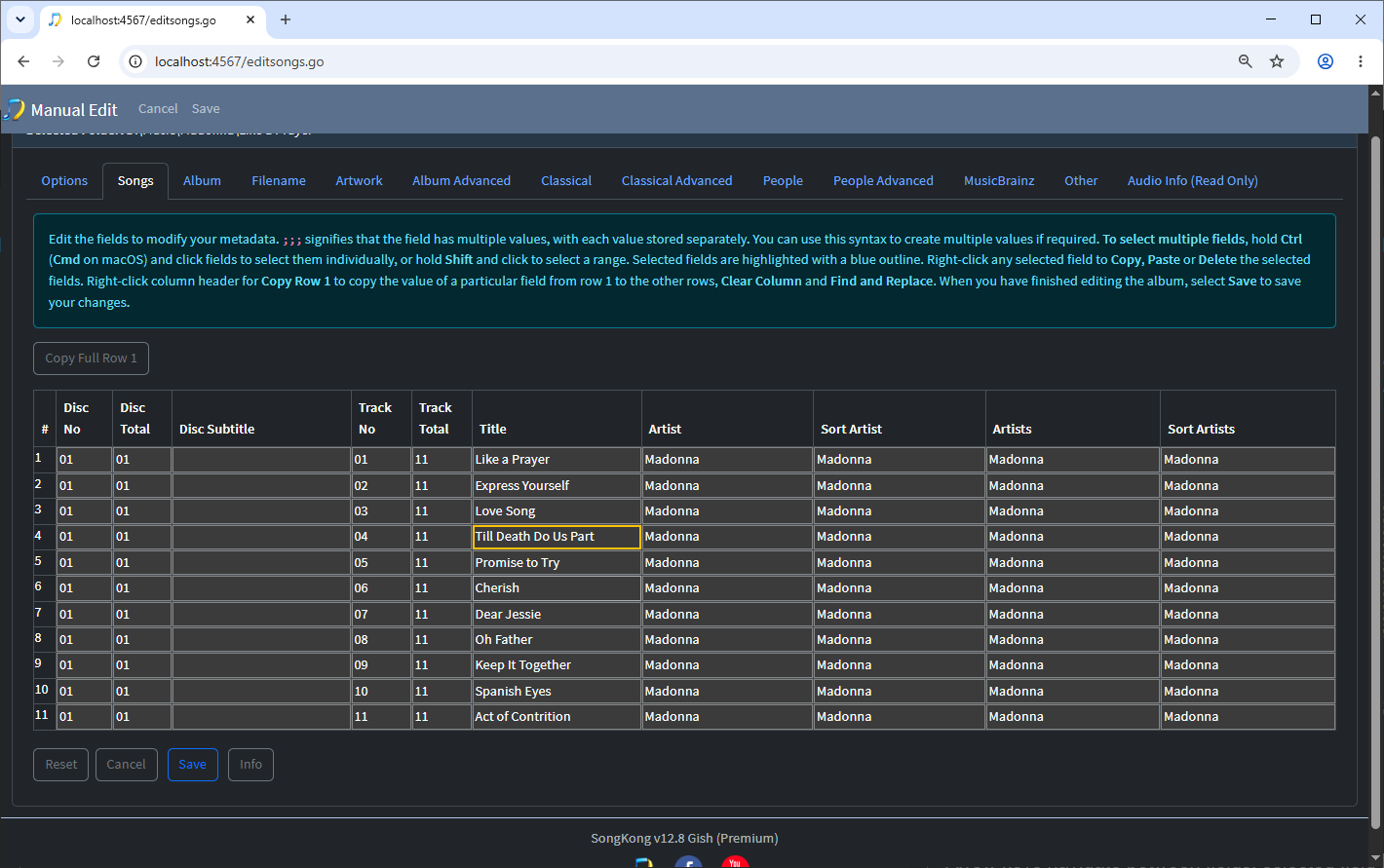
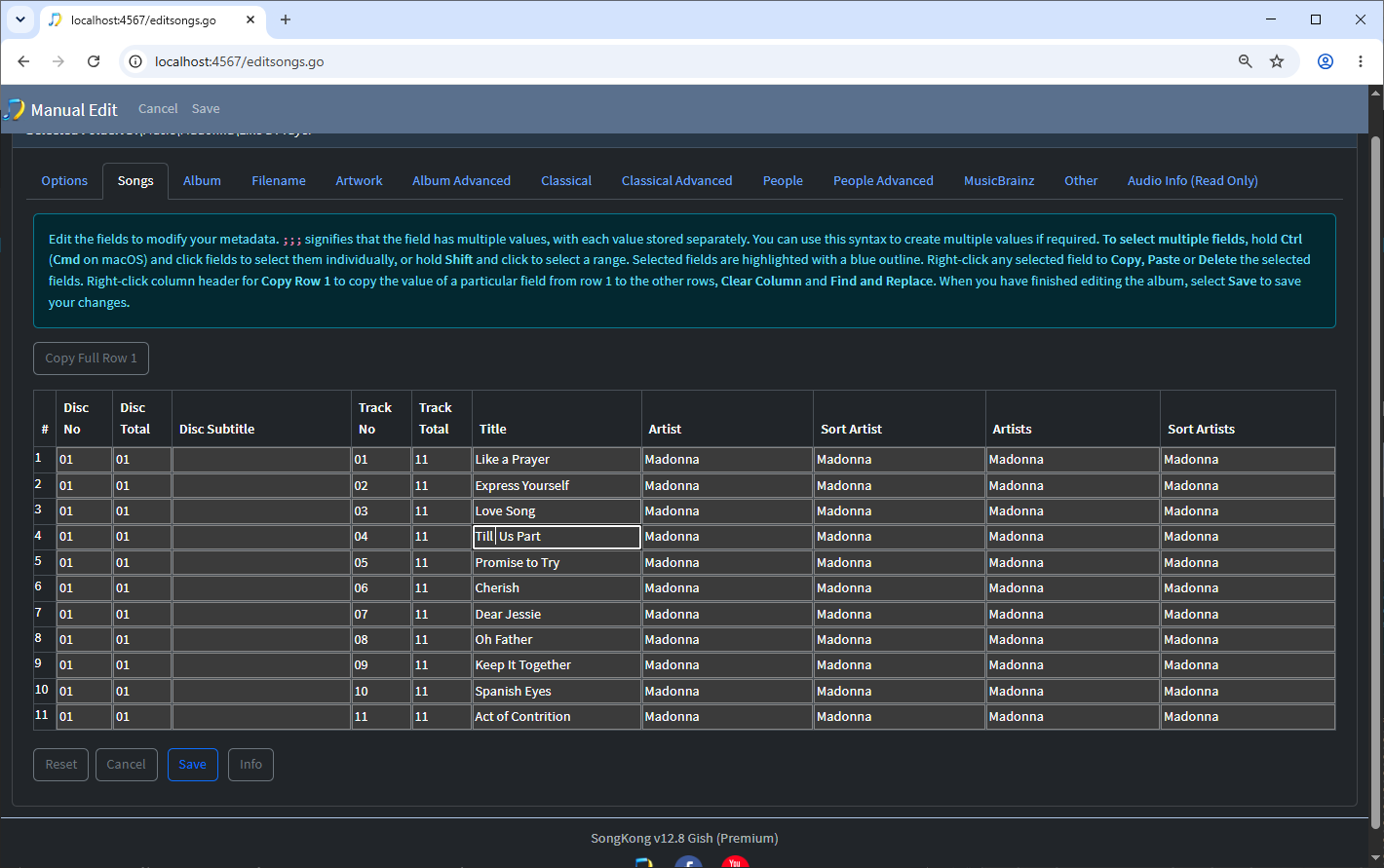
While editing, Left and Right arrows work normally within the text.
Select Enter again finishes editing and return to navigation mode.
Alternatively single click on a field immediately puts it into Edit mode, and clicking on other fields puts the newly selected field in edit mode
Escape while editing cancel that edit and restore the original value.
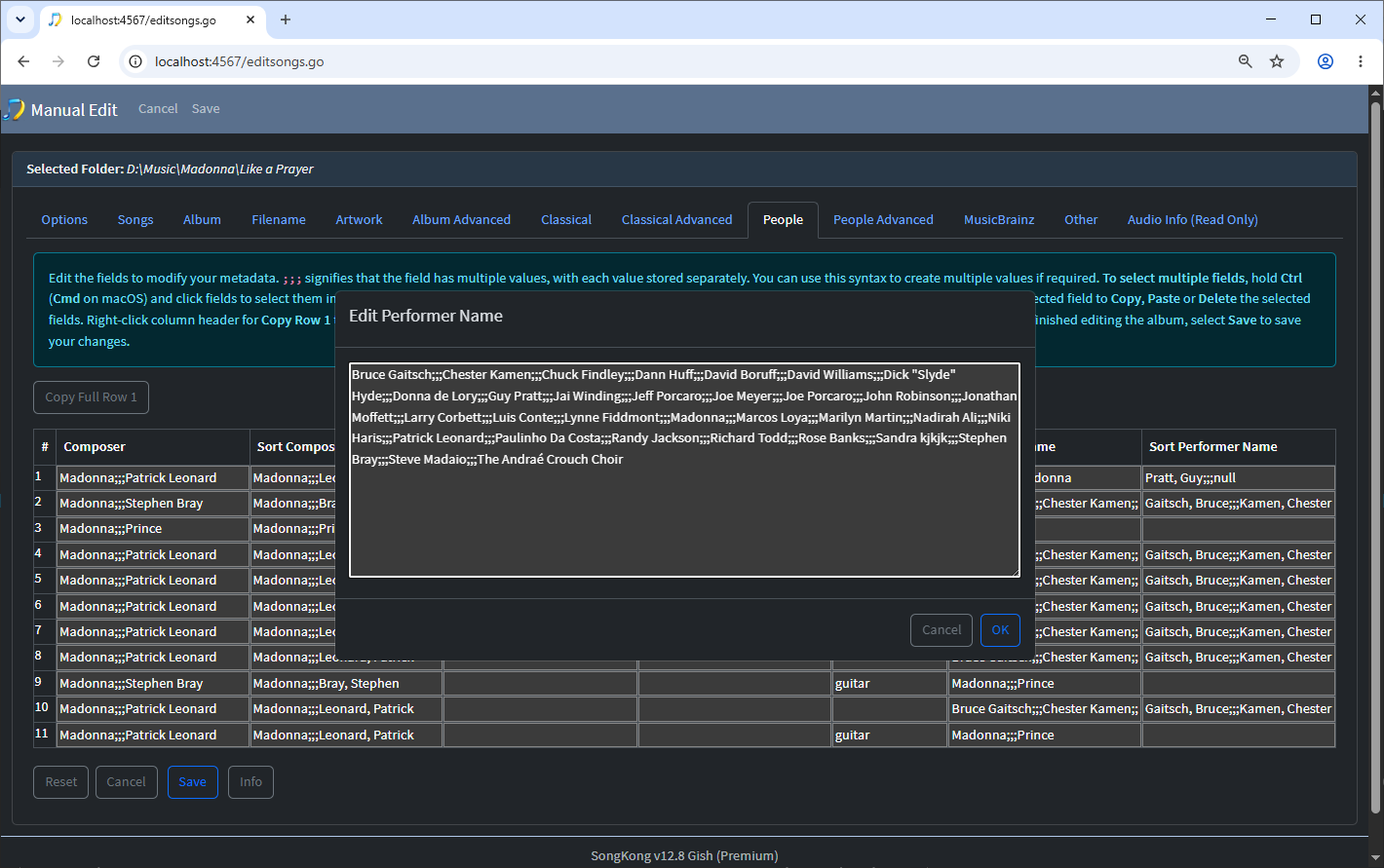
Double click on a field to open a popup editor that makes it easier to edit long fields
Multiple Field Selection
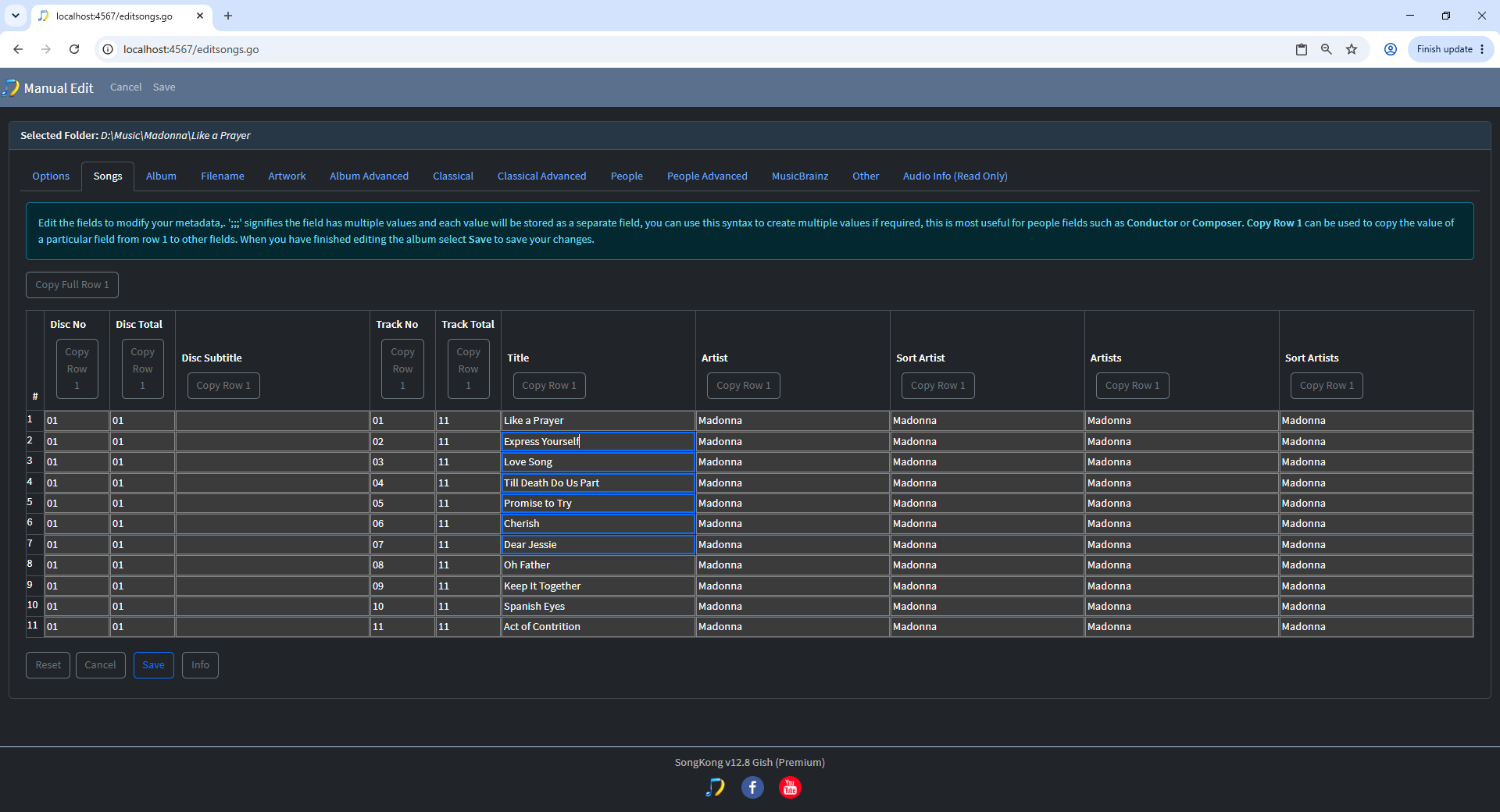
Selecting multiple fields: Hold Ctrl (Cmd on macOS) and click fields to select them individually, or hold Shift and click to select a range, the elected fields are highlighted with blue outline.
Field Context Menu
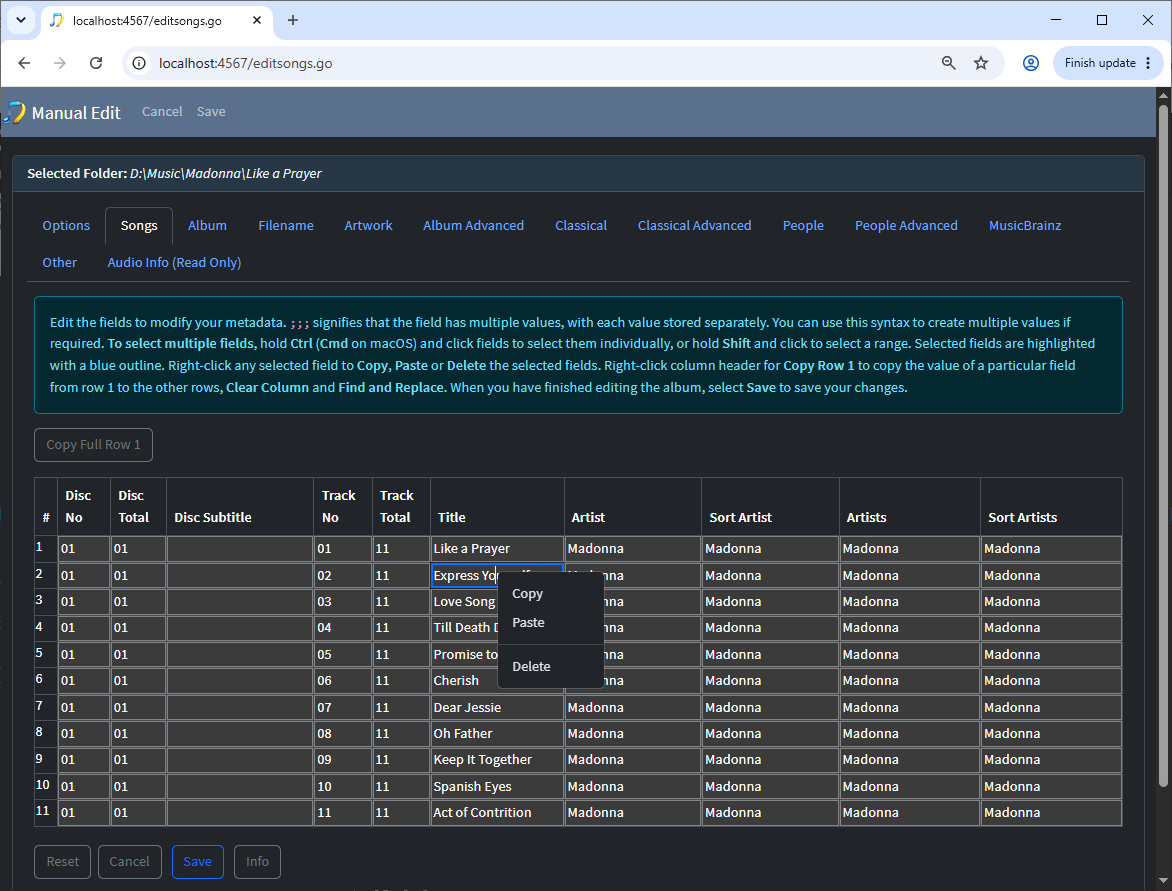
Right-click a selected field to Copy , Paste or Delete all selected fields.
Copy
Copy the selected fields into the Clipboard
Paste
Paste the contents of the Clipboard into selected fields
Delete
Delete the contents of the selected fields
Special Keys
Press Esc to clear the selection.
Press Delete button to clear all selected fields.
Column Header Context Menu
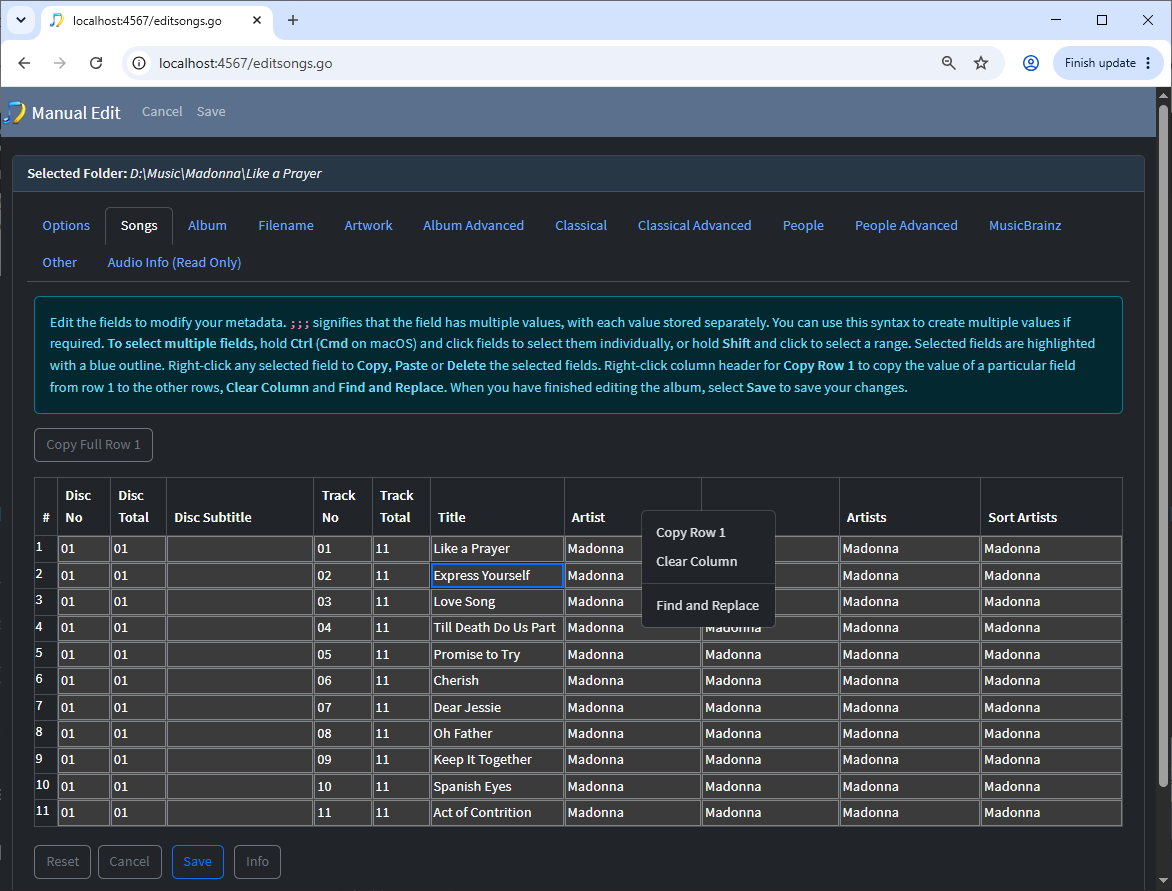
Right-click a column header to access Copy Row 1 , Clear Column and Find and Replace.
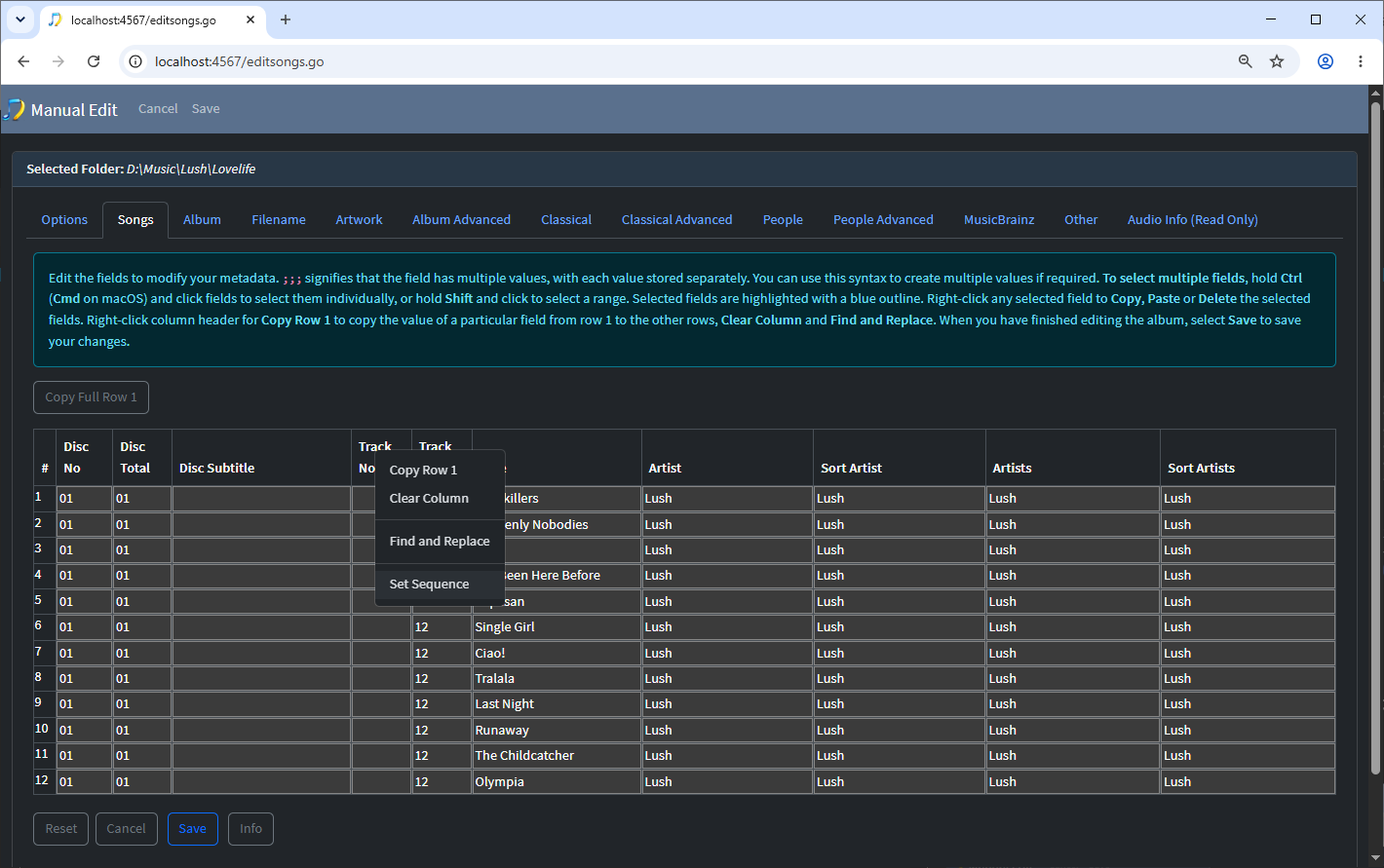
Movement No and Track No columns also have a Set Sequence No option
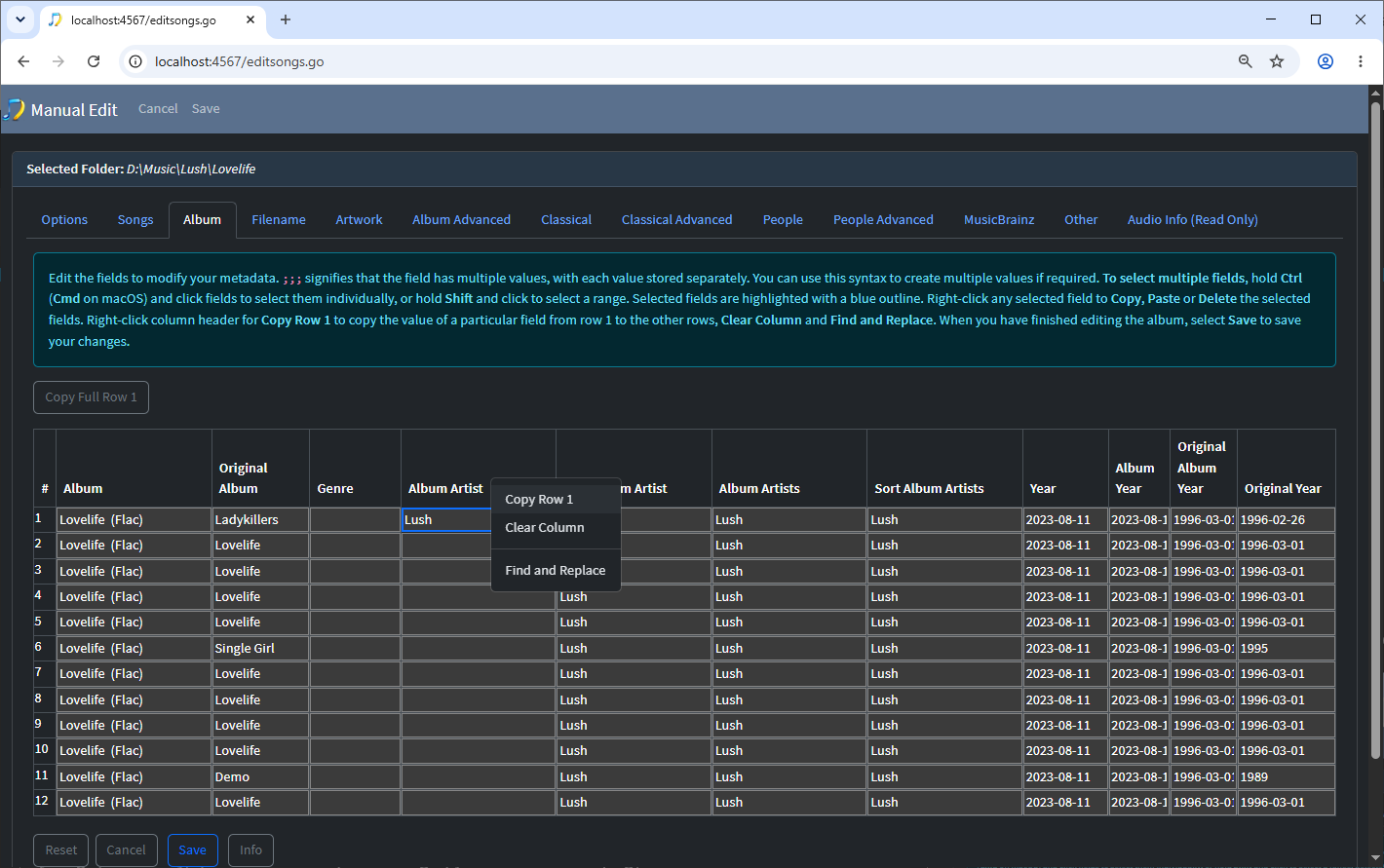
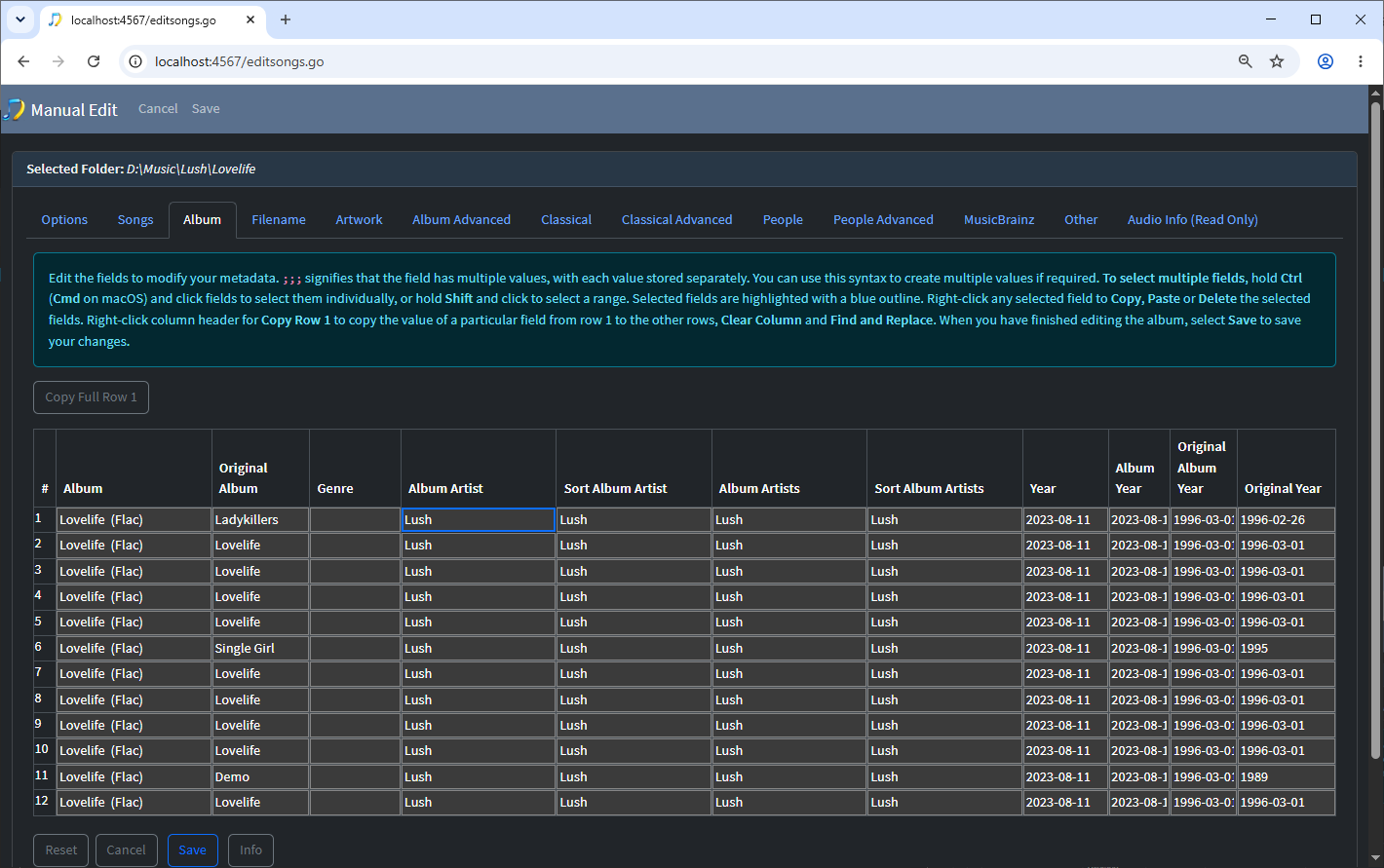
Copy Row 1
We can use the Copy Row 1 button on any column to copy the value of the first row in the selected column to all the same column in the other rows.
Before
After
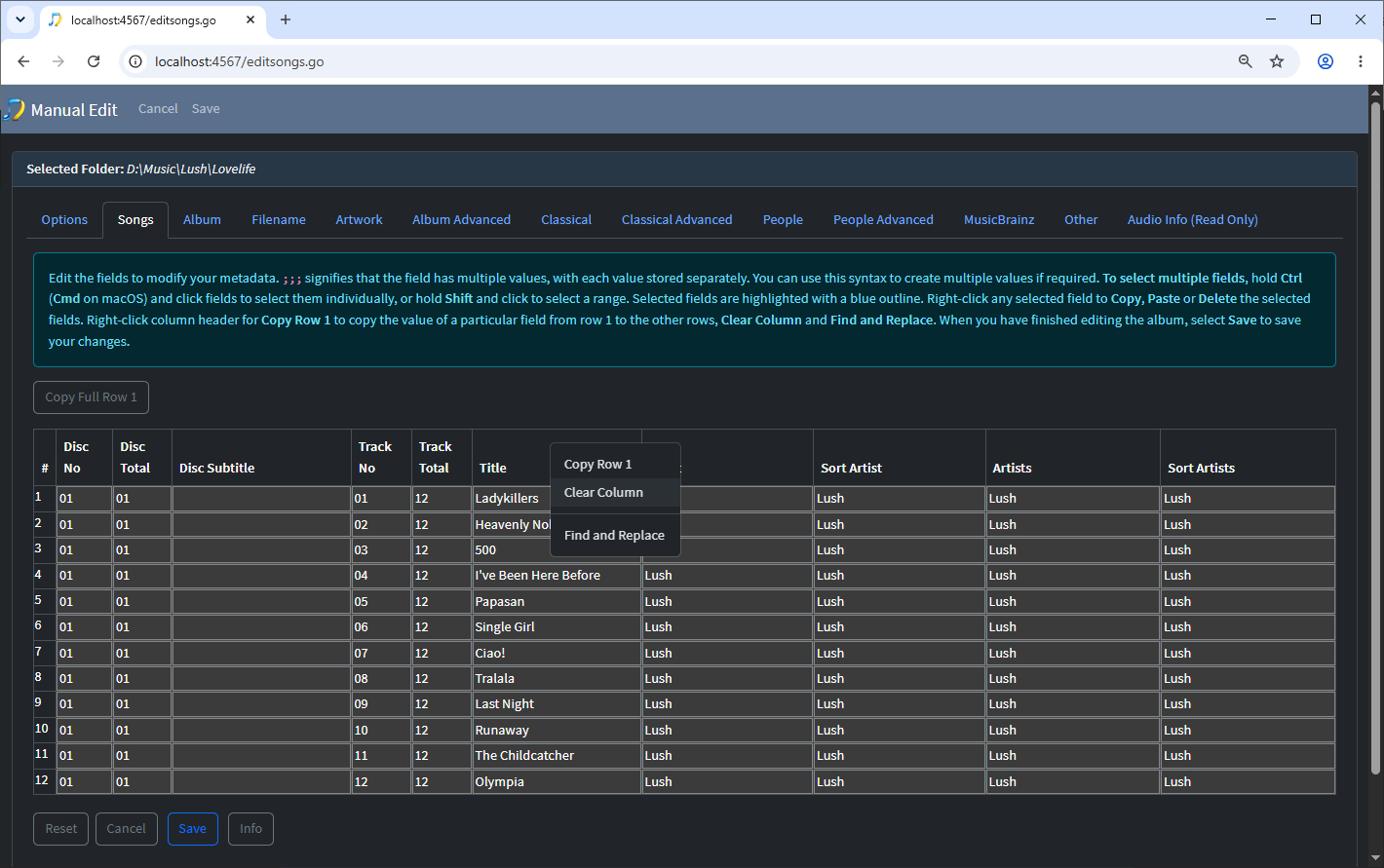
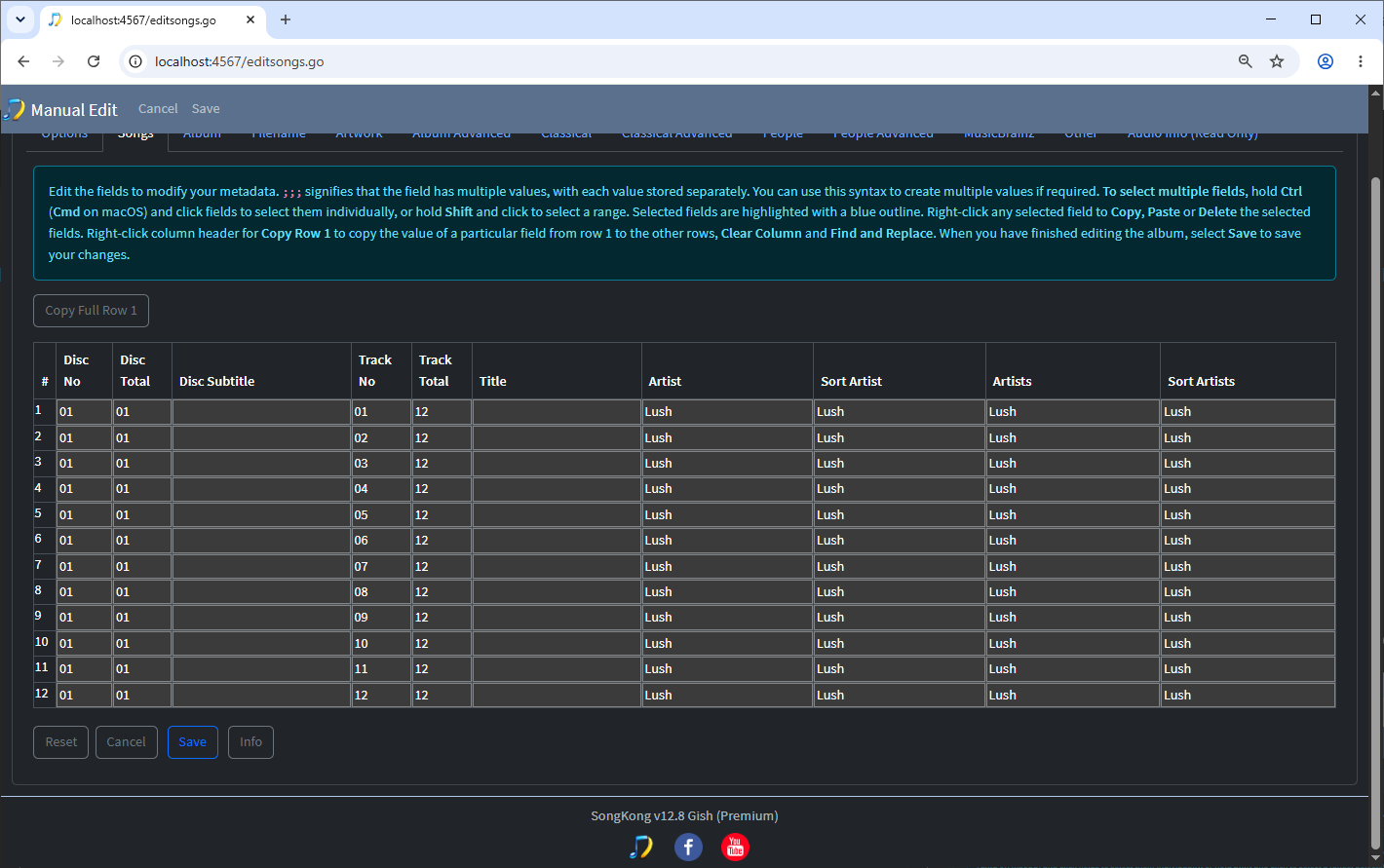
Clear Column
Clear the contents of all rows for the field in the selected column
Before
After
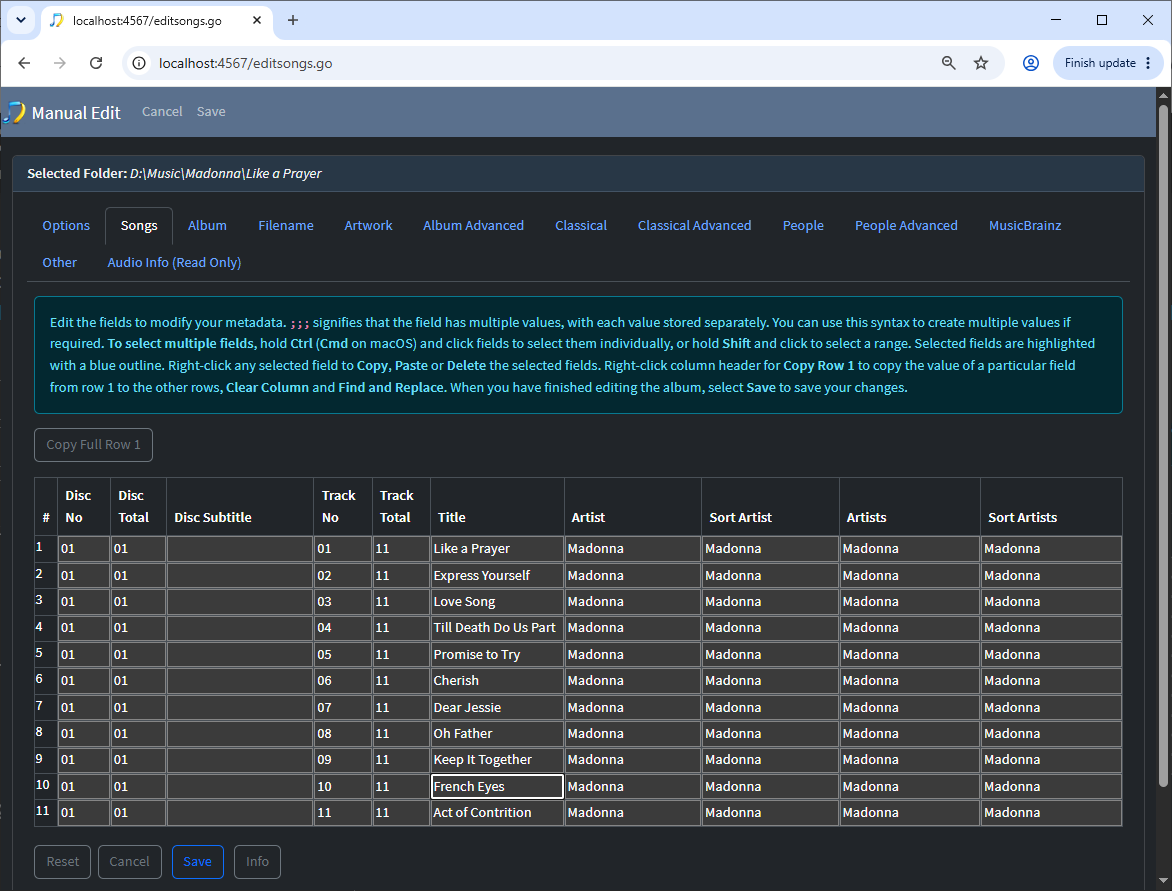
Find and Replace
Search the fields in the selected column for the find value and replace with the replace value
Before
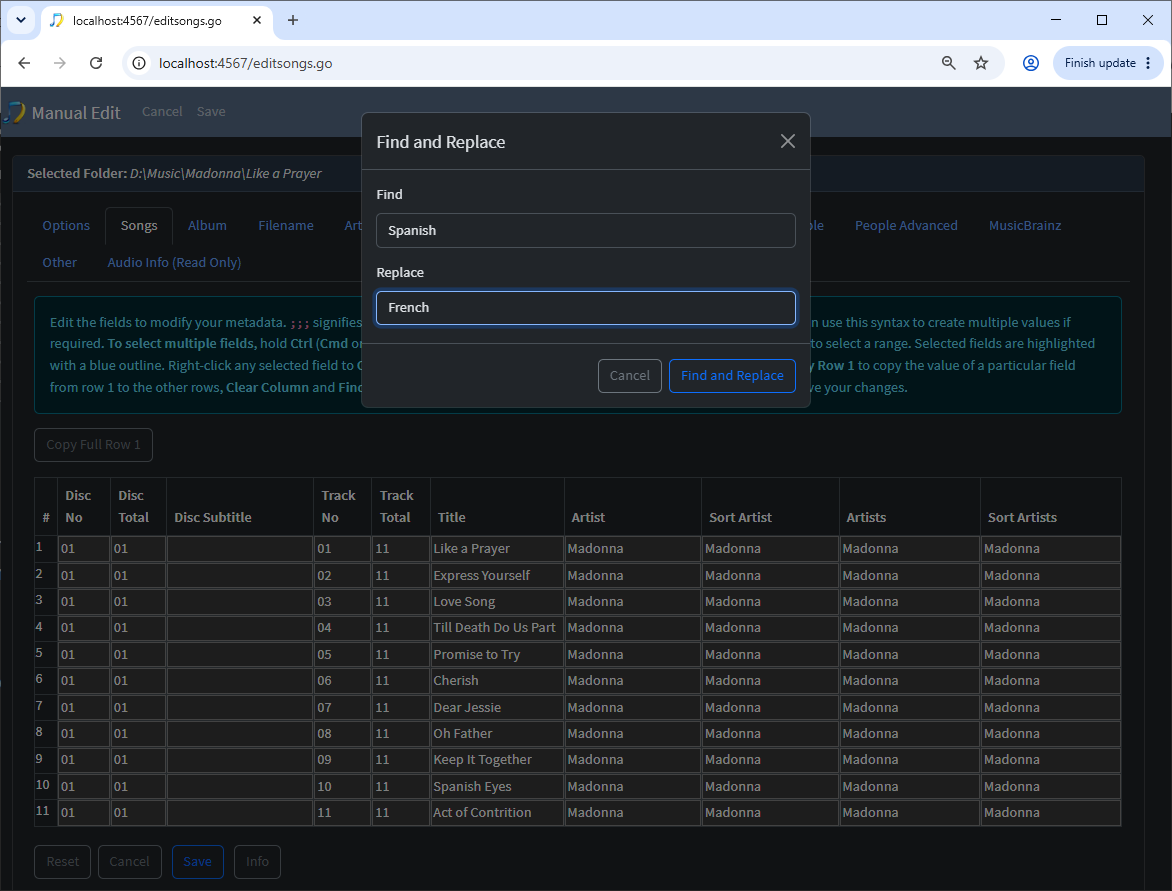
After
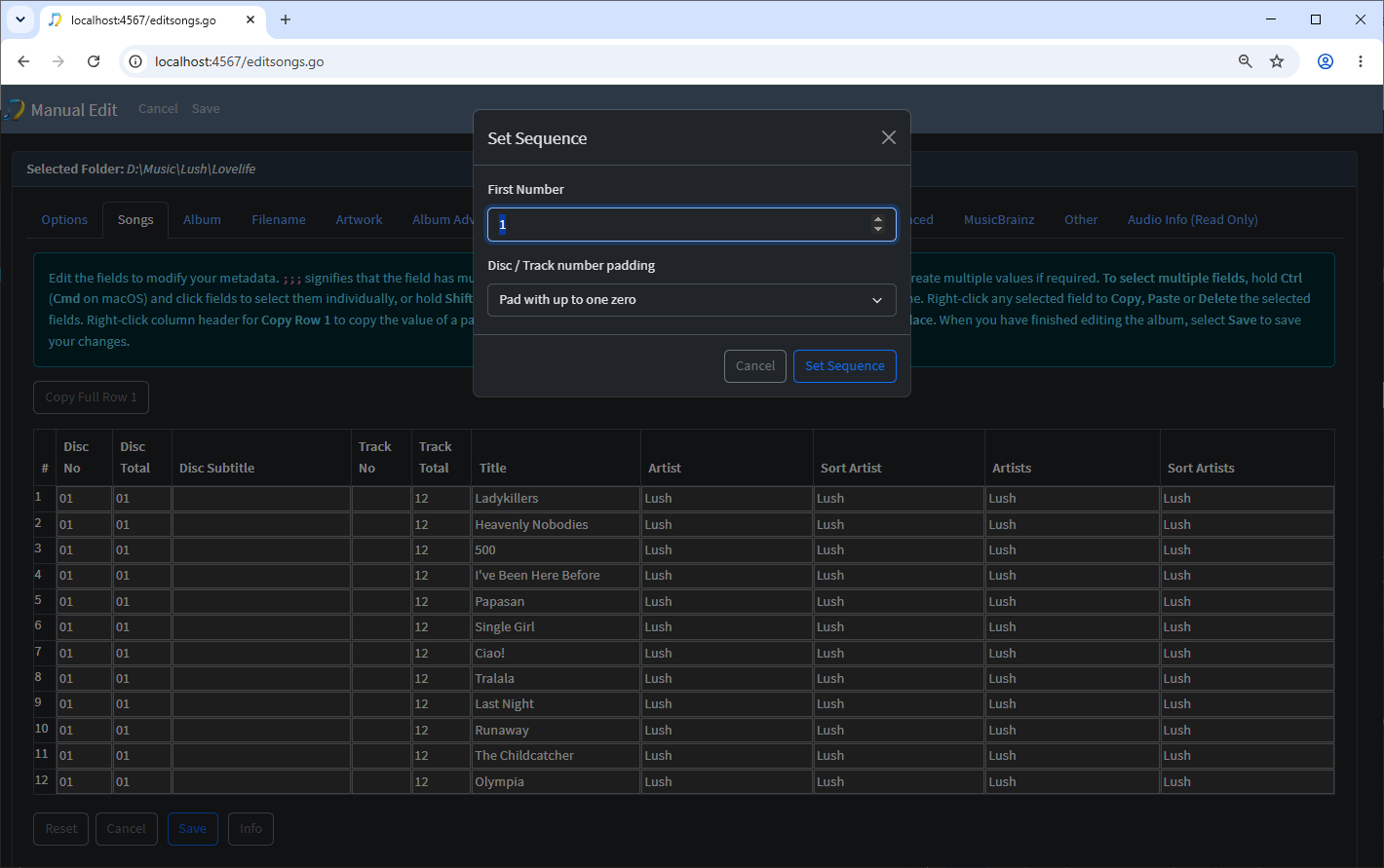
Set Sequence No
Can be used to renumber a series
Before
Choose Options
After
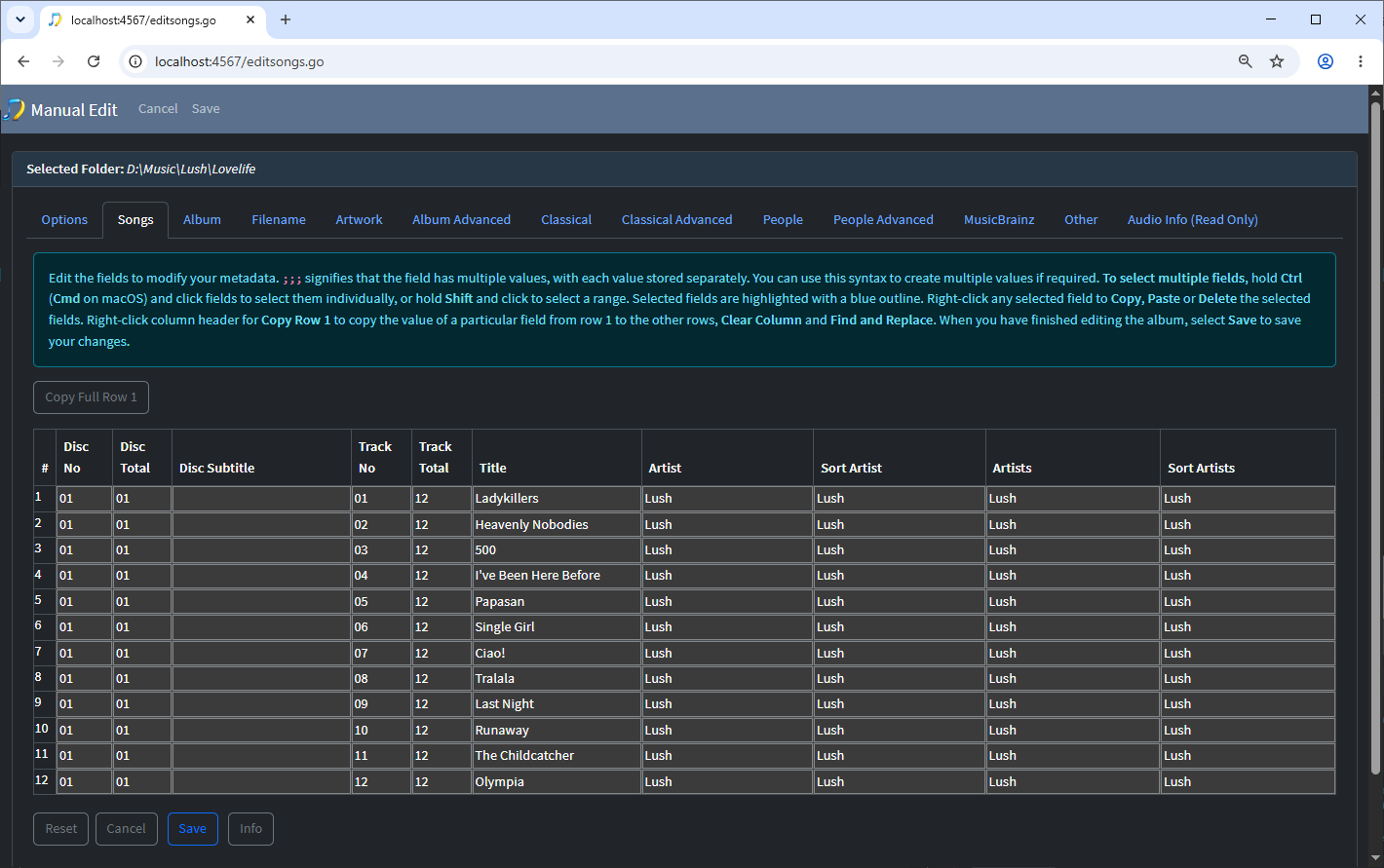
Copy Full Row 1
In many cases multiple rows will have the same value, for example on the Album tab there should usually be no difference between any row. So we can use the Copy Full Row 1 option to fix missing data in other rows so all rows are same as row 1.
Multiple Fields
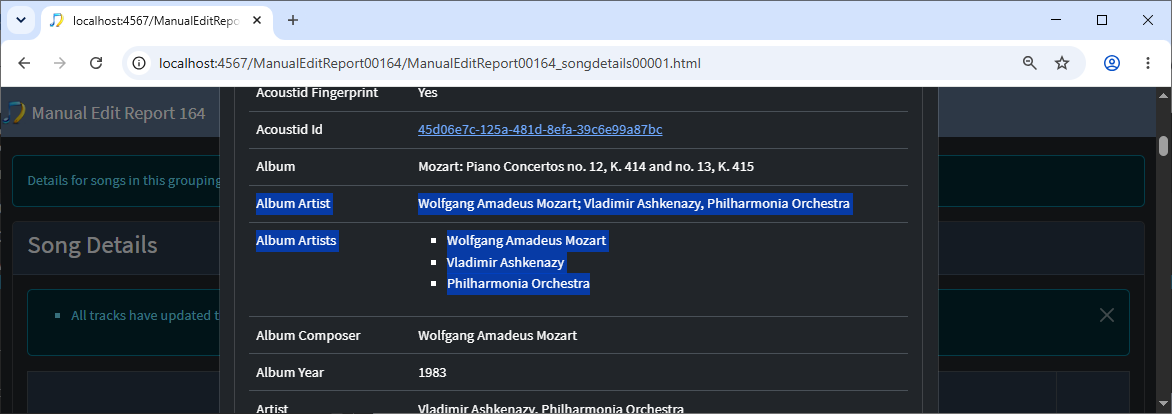
We use three semi-colons ;;; to indicate when a field stores multiple values. For example we usually store multiple artists in the Album Artist field as one value, but we store each artist as a separate value in the Album Artists field (note the plural). So if we look at the Album Artists field we see there is three semi-colons separating the values, this indicates there are multiple values, the three semi colons are not displayed outside off this tab but we can remove (or add) three semi colons to make a field have (or not have) multiple values.
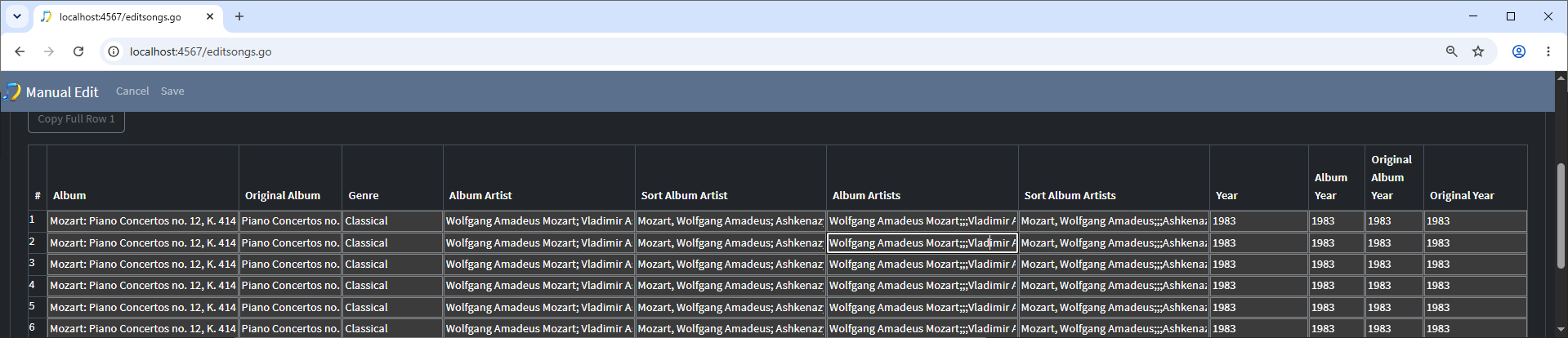
If we don’t make any changes but look the Edit Songs Metadata report it should be clearer what we mean by this. The Album Artist field stores just one value which comprises multiple people separated by one semi colon because this is how they are represented on the album. But the Album Artists stores each artist as a separate value, there are no semi-colons visible.