Tasks can be run Preview Only to create a report without actually changing any of the files. And we can review the report and if we are happy with the results use the Apply Preview task exactly as showing in the report to our files for real.
When we select Apply Preview task it checks the following:
- We have a Standard or Premium License not only a Lite License
- The last task was run Preview Only
- At least one file would have been modified if the task had been run without Preview Only
If all are true then SongKong summarizes the task
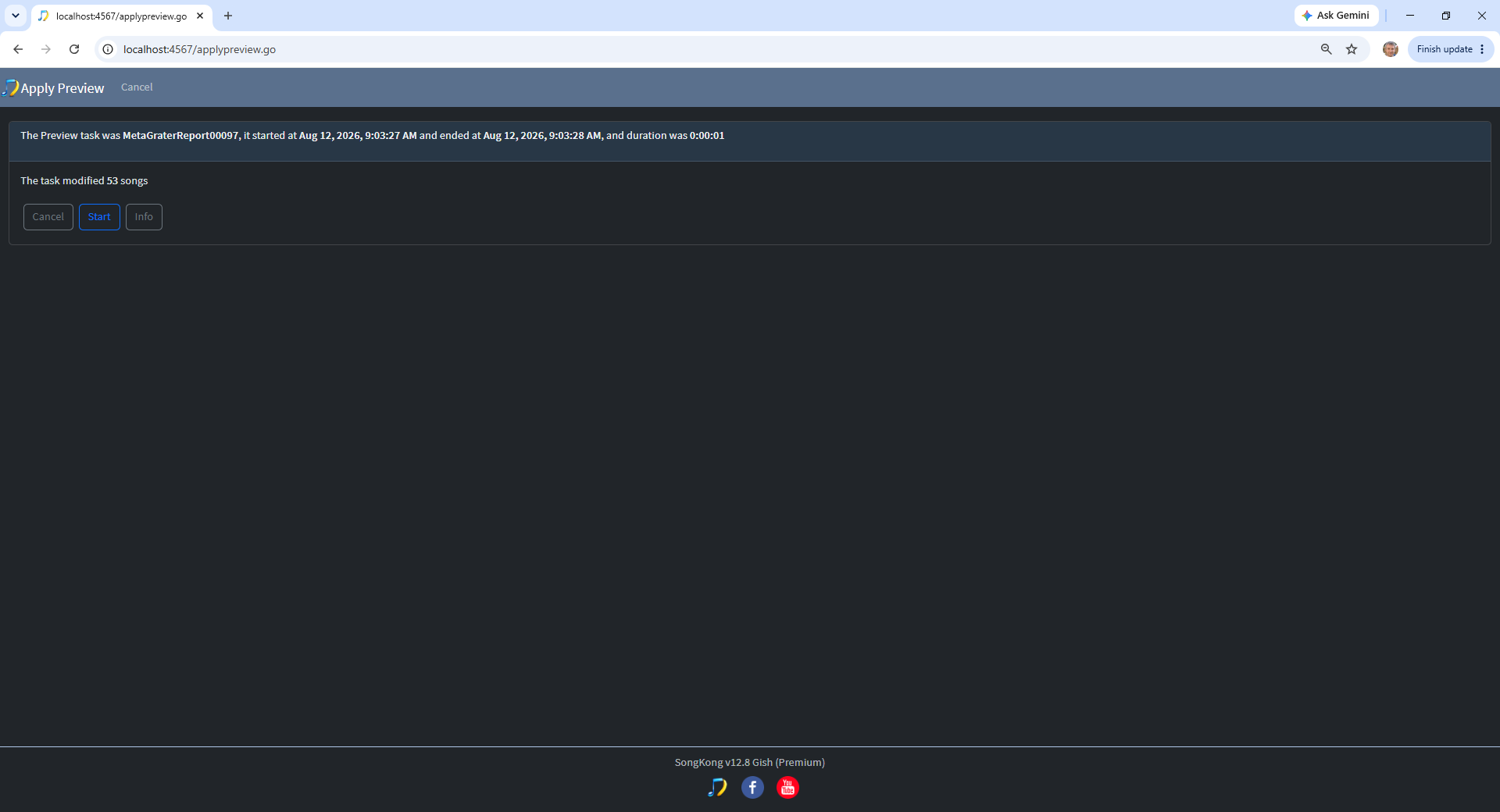
And allows us to proceed by selecting Start
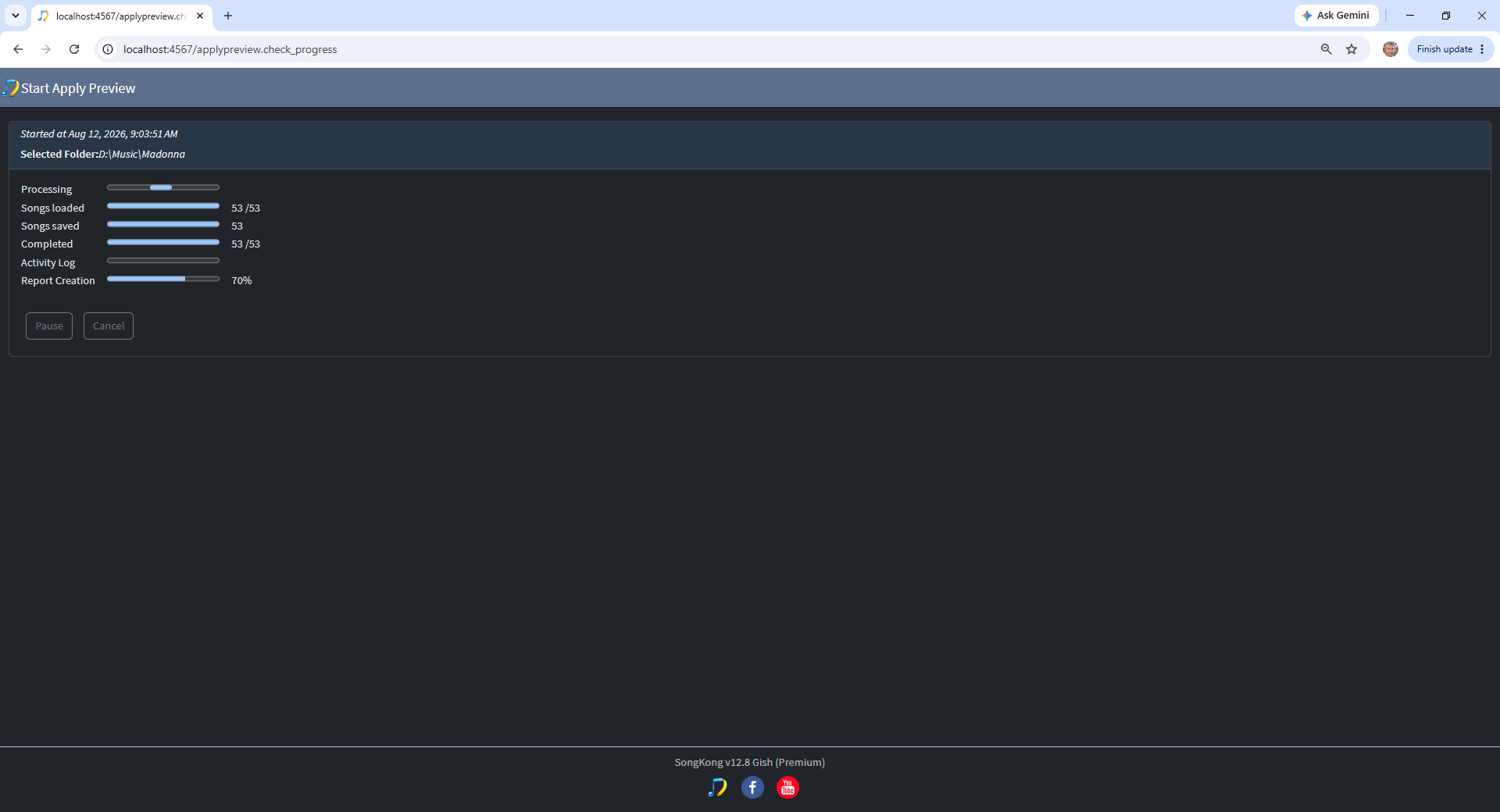
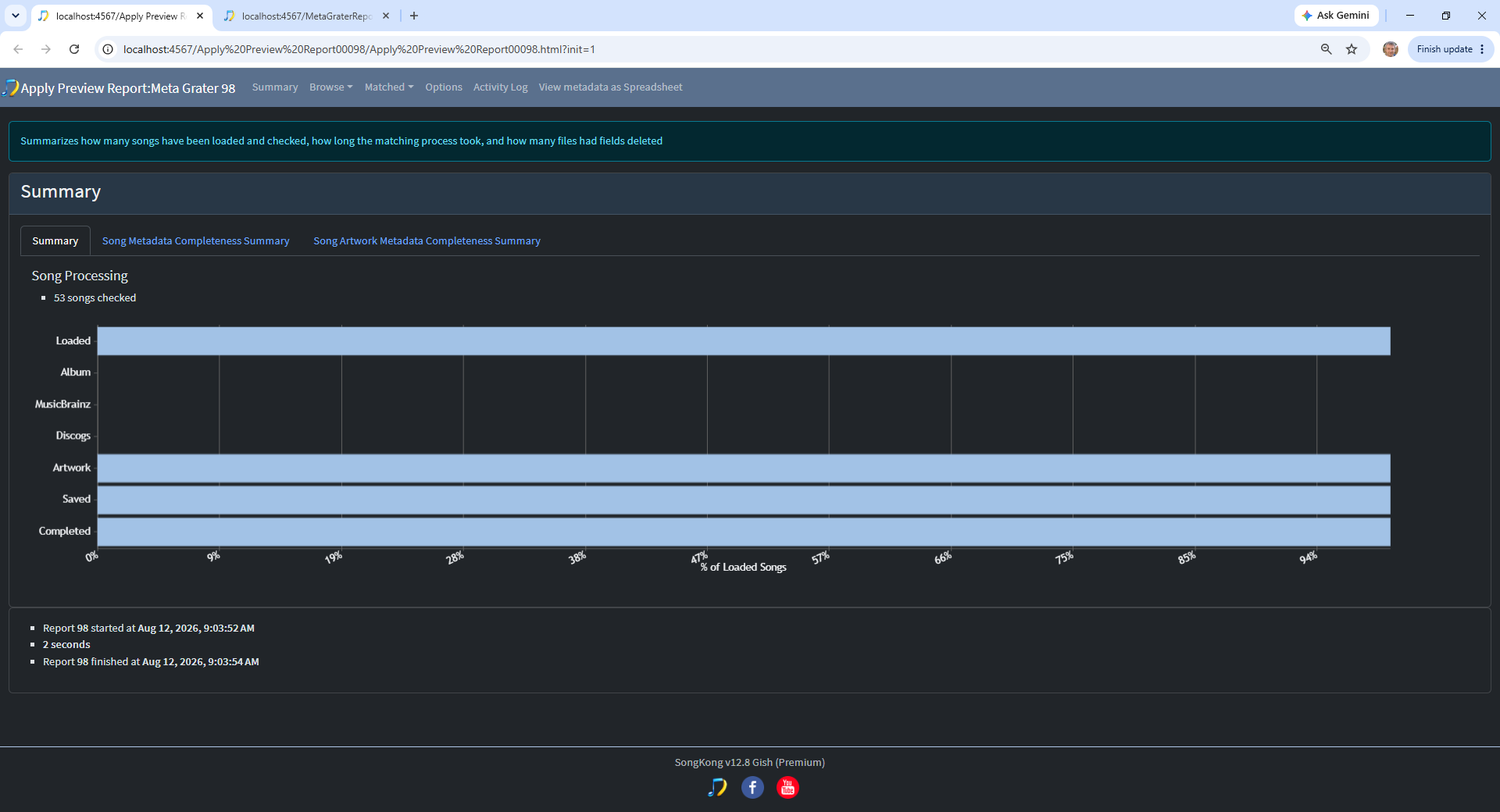
When complete it shows a report very similar to the report created by the original task
e.g
Apply Preview task
MetaGrater task run Preview Only
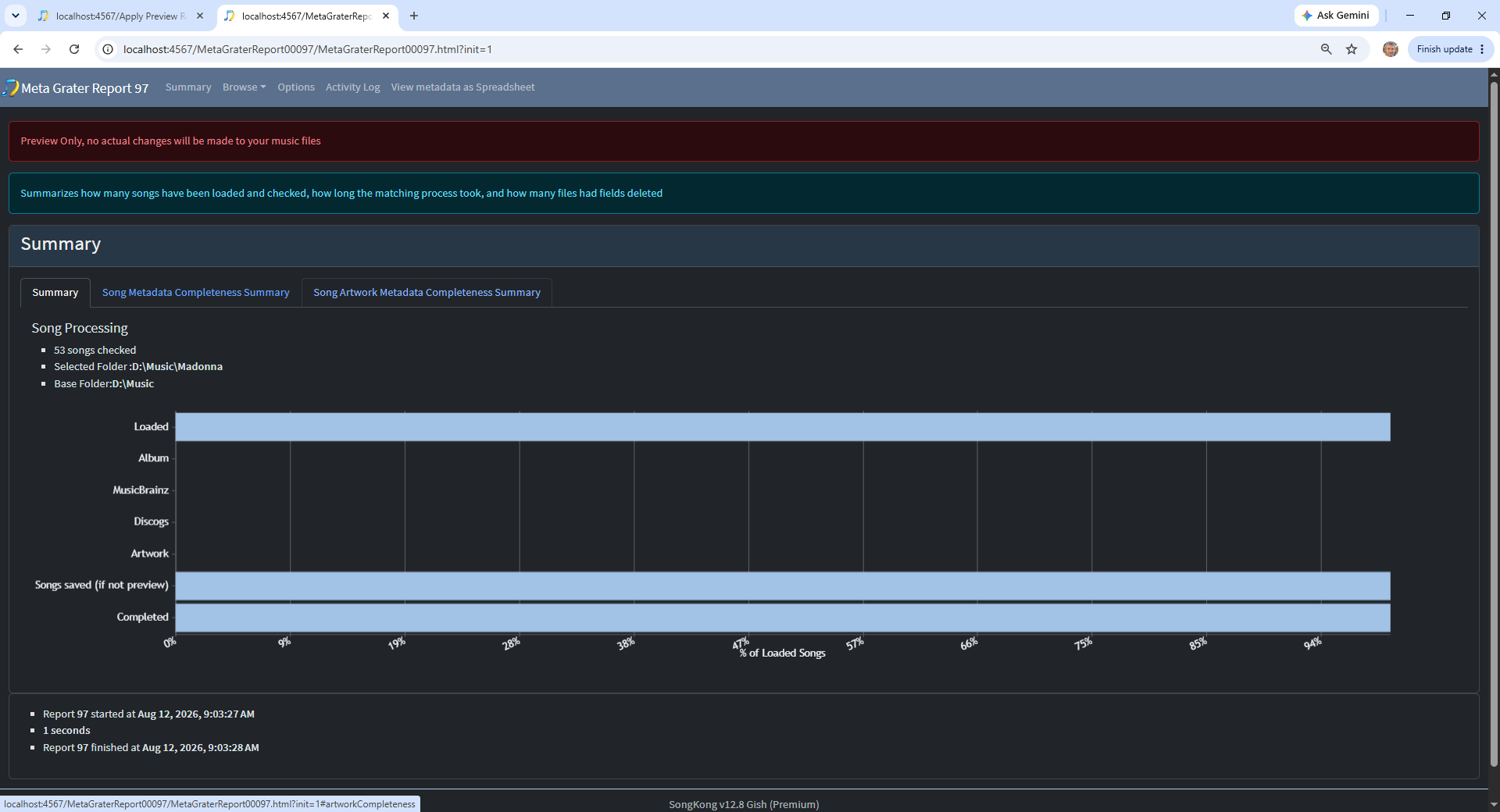
The only differences should be that the Apply Preview task is not run in preview mode and the report name is Apply Preview Report:Previous Task Name
Apply Preview creates a new report showing what was actually applied. Normally this will match the Preview report. However, an individual change may not be possible if something external has changed since the preview, for example if a file has been moved or a disk error occurs.
Unlike other tasks the Selected Folder is not used, Apply Preview simply processes all the files processed by the previous task.