SongKong Jaikoz

SongKong and Jaikoz Music Tagger Community Forum

Fix Songs fails on Windows 11 with WindowsPathWithAttributes error

Hi,

I am using SongKong v12.9.1 Currents on Windows 11.

When I run Fix Songs on this folder:

C:\Users\binju\Music\King Crimson

SongKong reports 0 songs and cancels the task before checking MusicBrainz or Discogs.

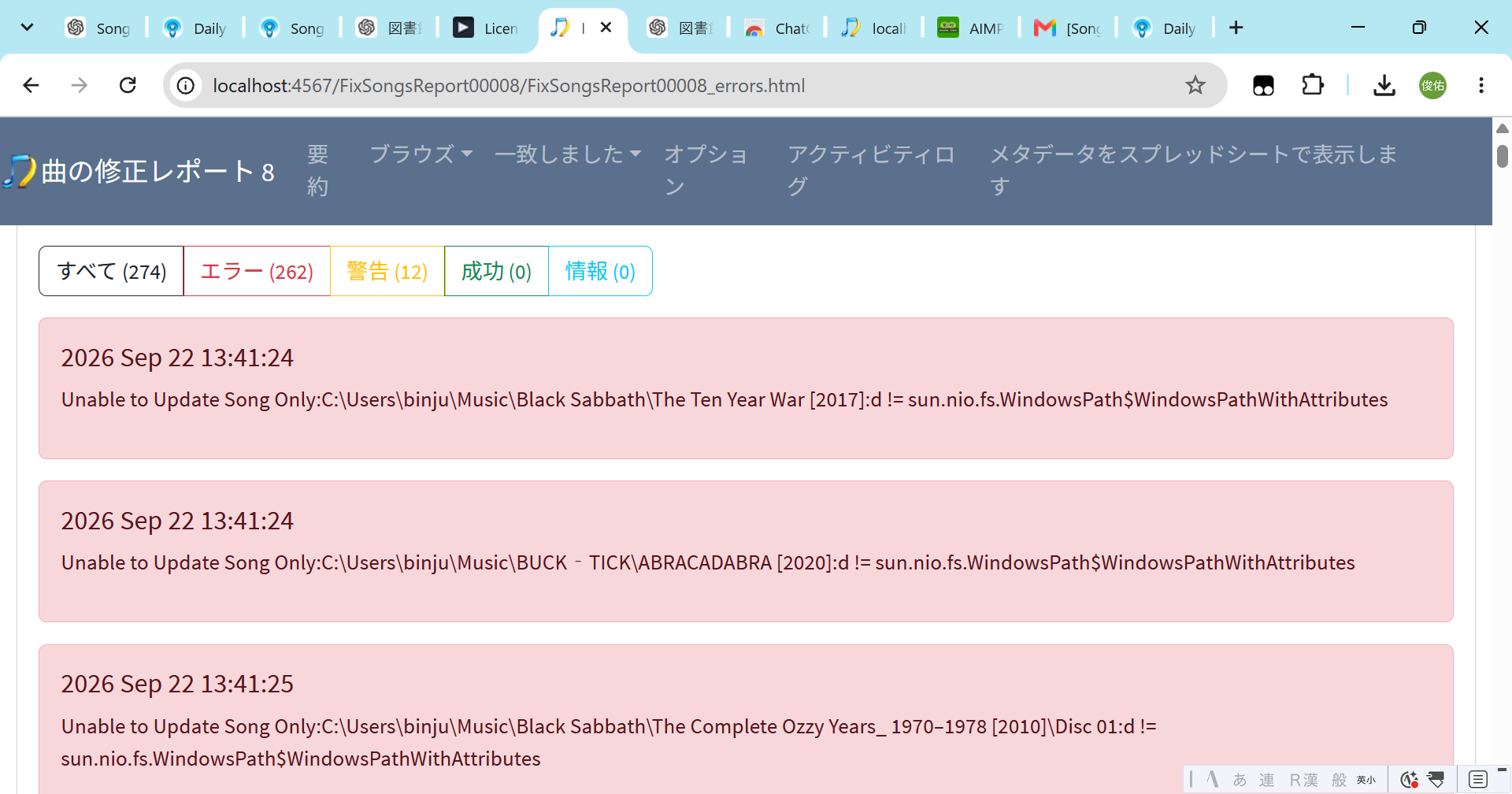
The Activity Log shows the same error for many album folders, for example:

Unable to Update Song Only:
C:\Users\binju\Music\King Crimson\Discipline [1981]:
d != sun.nio.fs.WindowsPath$WindowsPathWithAttributes

The same error also occurs with folders such as:

C:\Users\binju\Music\King Crimson\Live in Toronto [2016]
C:\Users\binju\Music\King Crimson\Islands [1989]
C:\Users\binju\Music\King Crimson\In the Court of the Crimson King [2004]

The music files are present in these folders and can be accessed normally in Windows Explorer.

Fix Songs is being run in Preview Only mode.

Could you please check why SongKong cannot process these folders?

I can also upload the SongKong Support Files if required.

Thank you.
image

Hi, I’m guessing there is some issue with SongKong not dealing with Japanese characters properly in some interaction with the Windows filesystem but I need to see your log files to work out the issue so yes please run Create Support Files

Thankyou for the support files, the error is actually that the order of some of the Japanese translations is different to the English ones and broken things. Can you try swapping to English and confirm that stops the errors happening, I will fix the Japanese translation file and send it to you when done - https://jthink.atlassian.net/browse/SONGKONG-3051

I changed only the SongKong interface language from Japanese to English and ran Fix Songs again on the same folder.

With the Japanese interface, SongKong reported 0 songs and produced the WindowsPathWithAttributes errors.

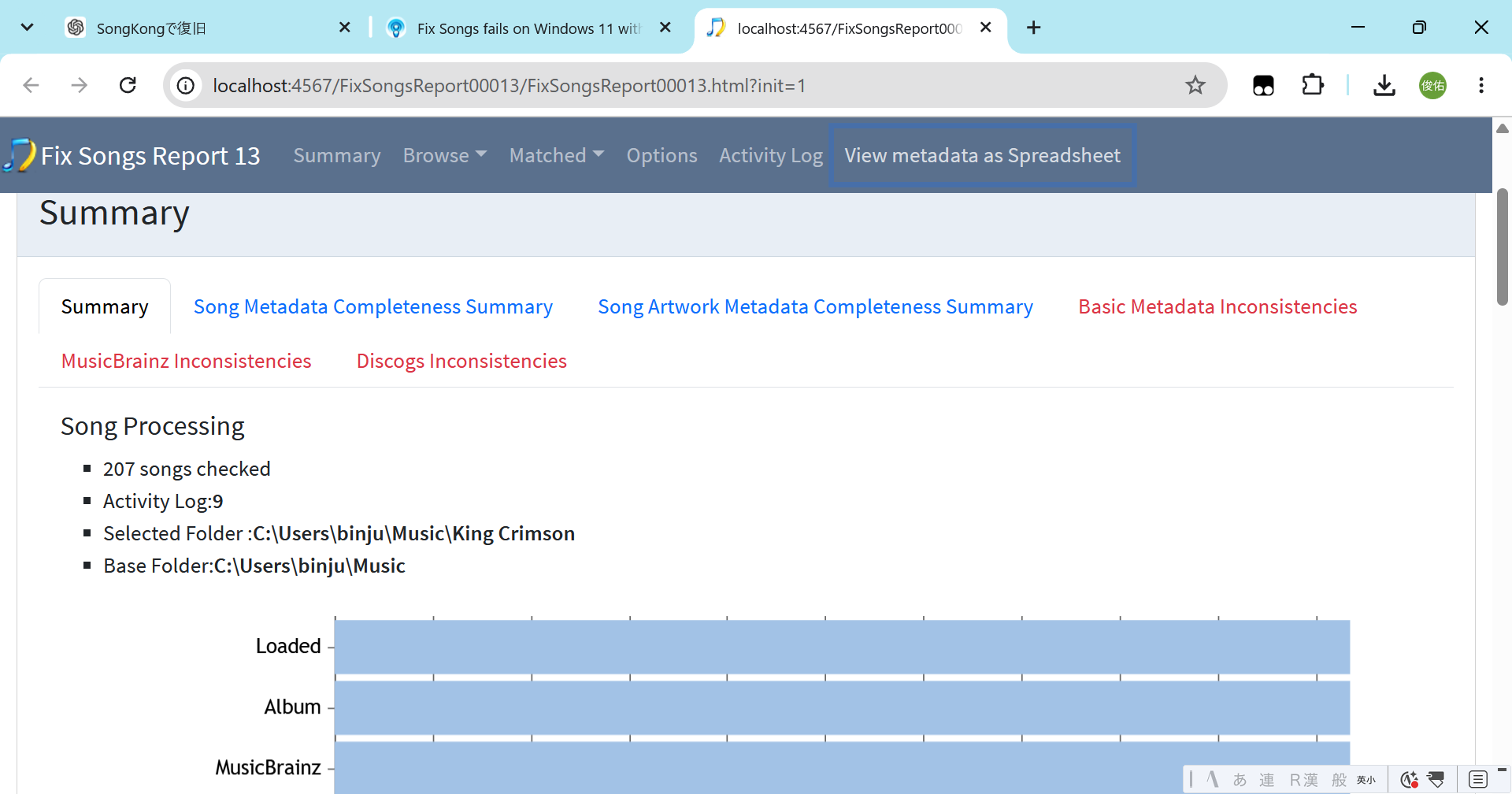
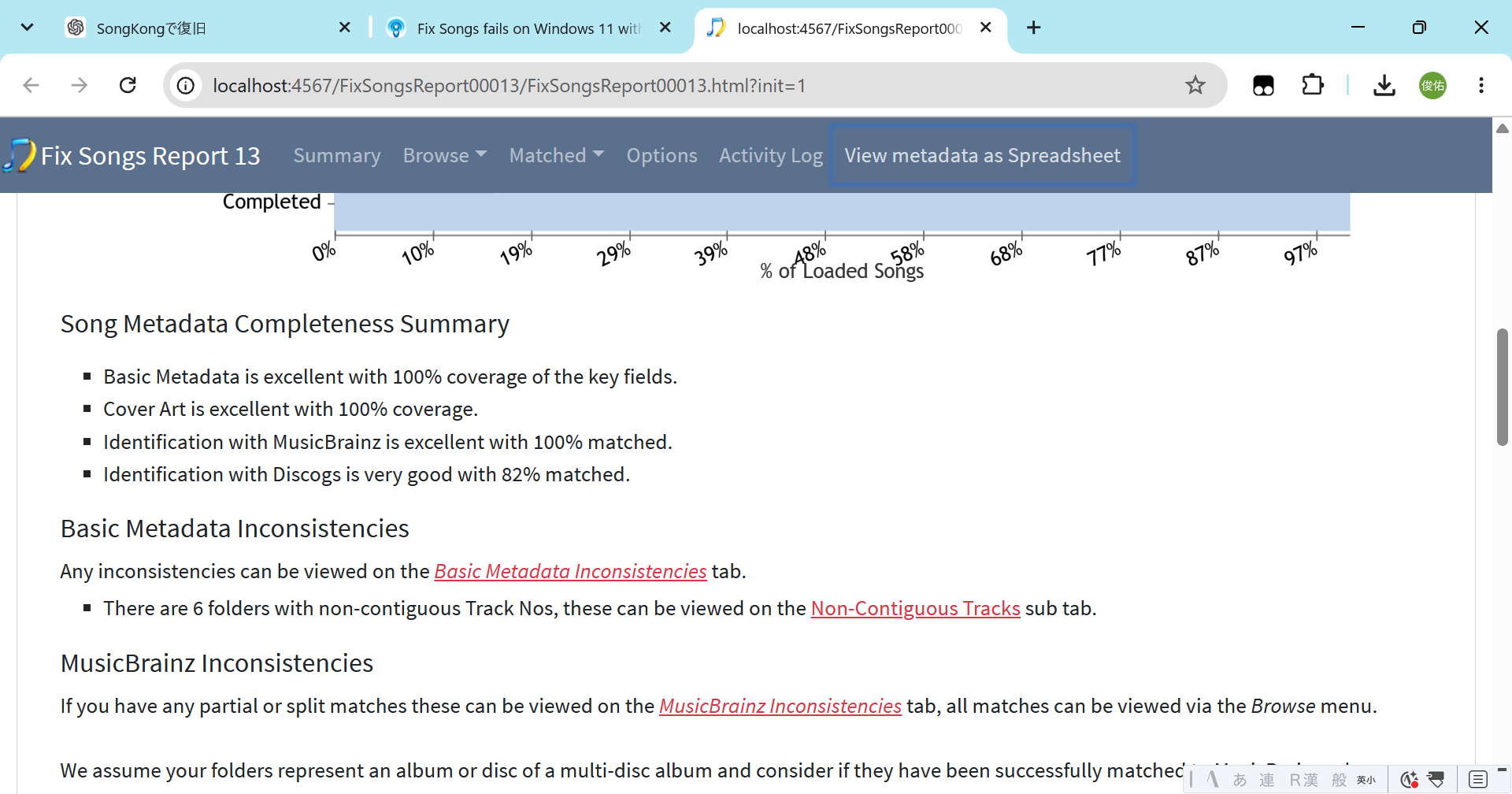
With the English interface, the same folder now processes successfully: 207 songs checked, 100% matched with MusicBrainz and 82% with Discogs.

I have run Create Support Files again after this successful run so you can compare the logs.


image

Thankyou, I have now fixed the issue. I have replaced the existing version of SongKong 12.9.1 with a new one

Since you are on Windows please do the following:

  • Uninstall existing version of SongKong
  • Download SongKong 12.9.1 again
  • Install SongKong

You must uninstall the old version first otherwise Windows will think you are trying to repair existing versions when you try to install new version.