Hi, i have about 3000 karaoke mp3, they are all id3tag with artist - Title but i want to add genre to them all too.
Does this software do this? i dont want to buy it and find out it doesnt.
thanks
Hi, i have about 3000 karaoke mp3, they are all id3tag with artist - Title but i want to add genre to them all too.
Does this software do this? i dont want to buy it and find out it doesnt.
thanks
Yes as long as songs are identified it can do that, you can also try it out first in free Lite mode to see the results before purchase.
Any tutorials just to add genre?
I tried and it said matches but couldn’t actually see what it would have added as there is no actually part to show the file and the before and after tags.
More than happy to buy when i know it does what i want as im sure its a no refund policy even if it doesnt do what i want!
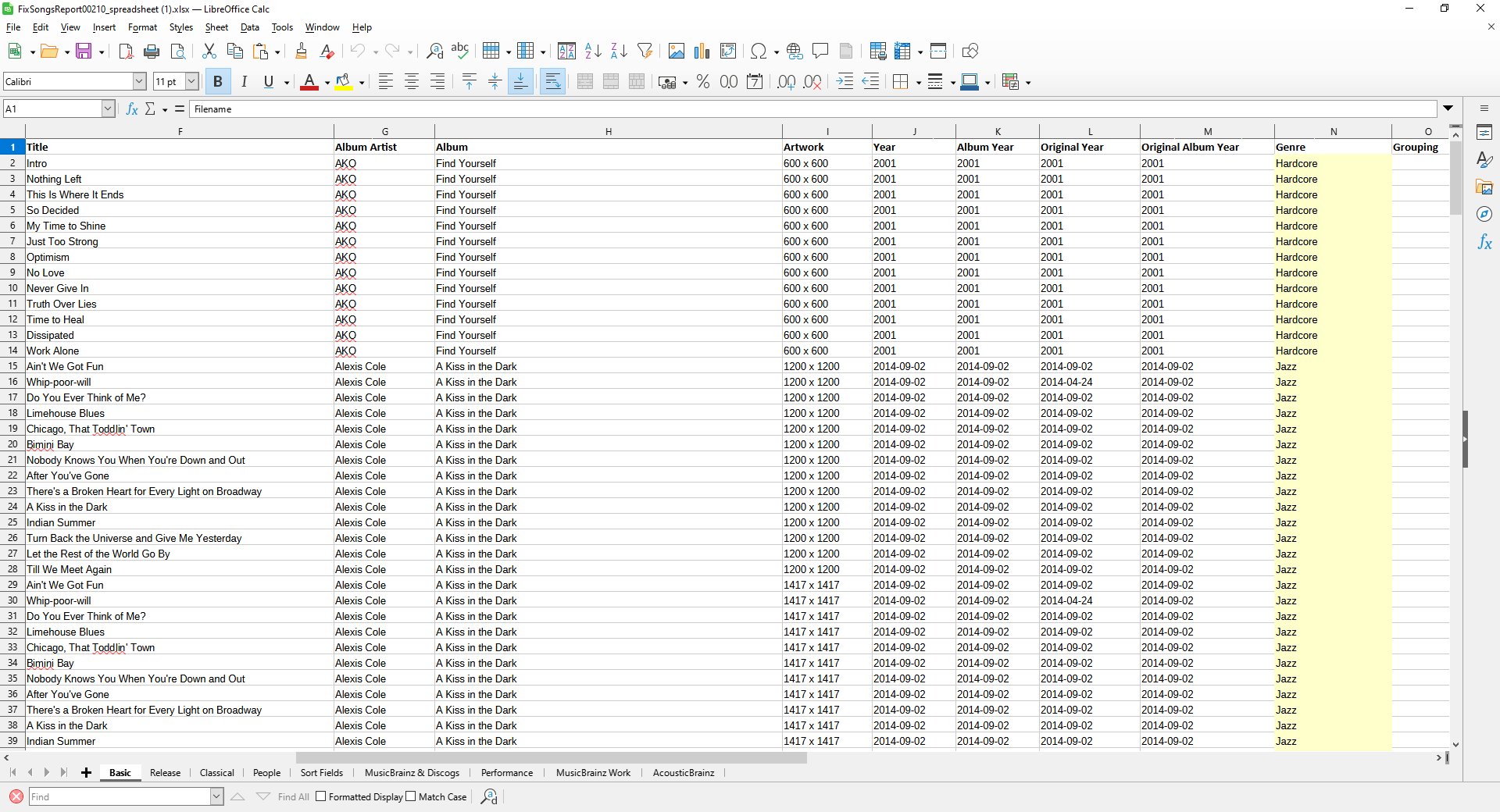
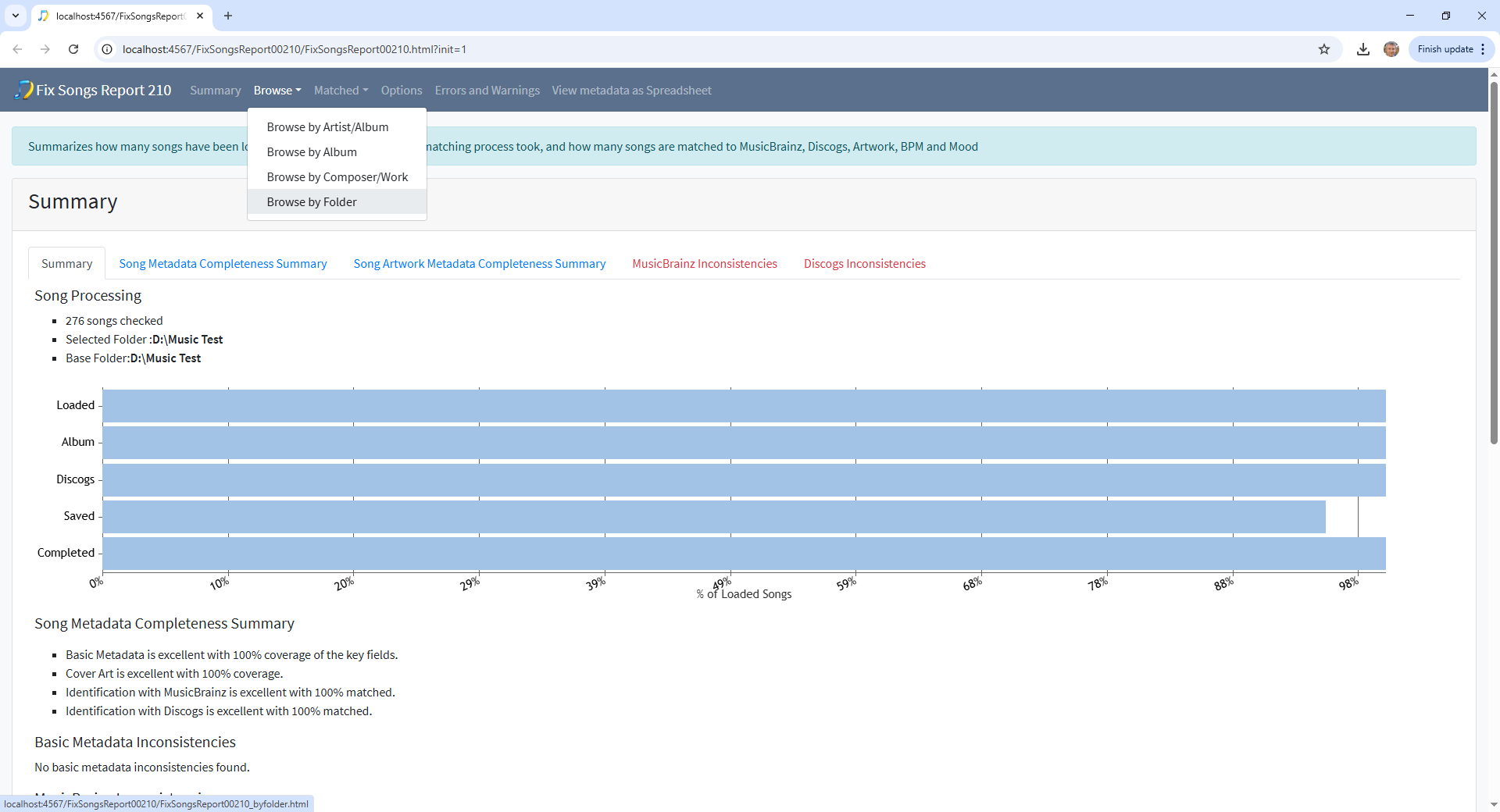
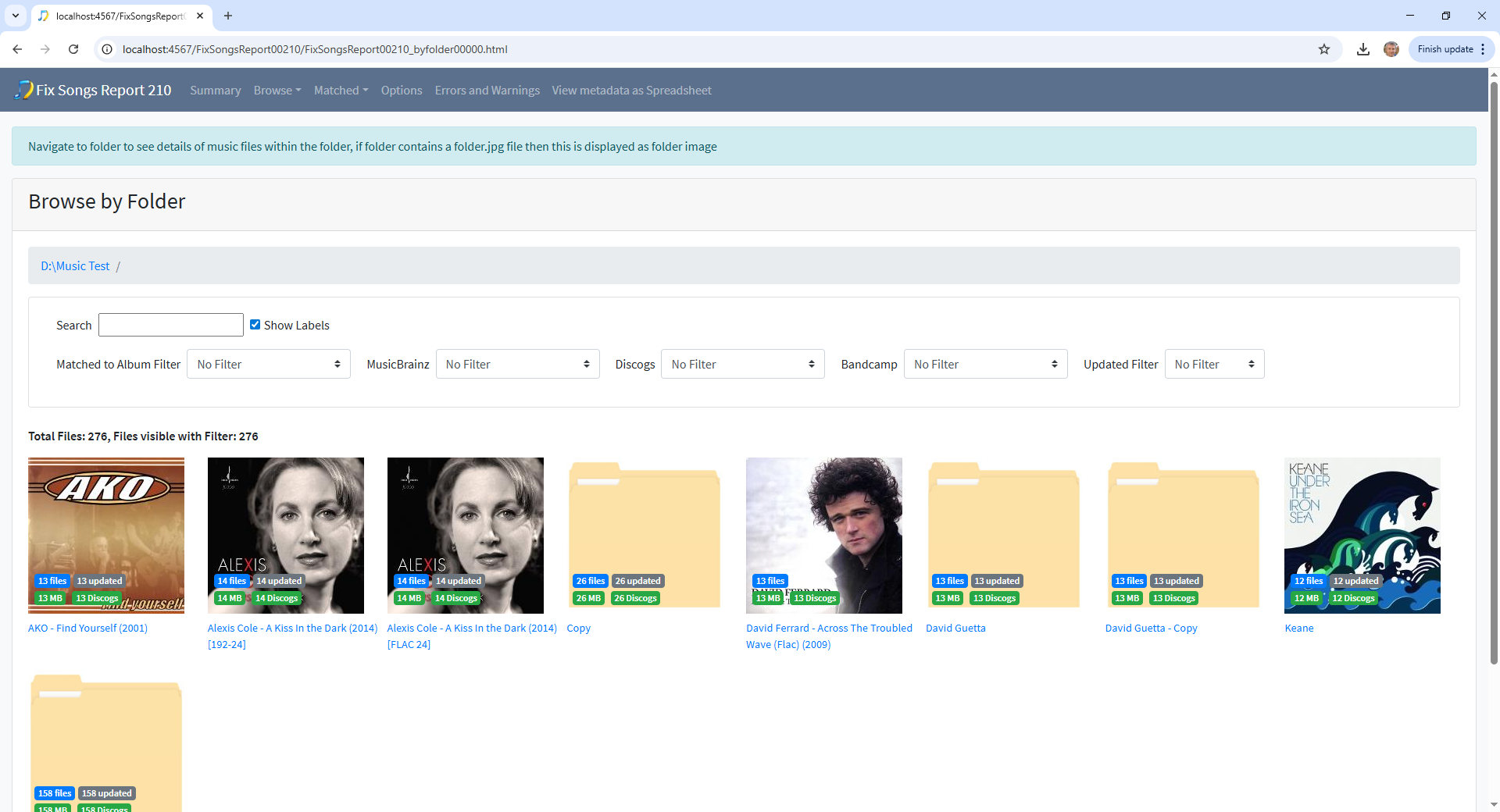
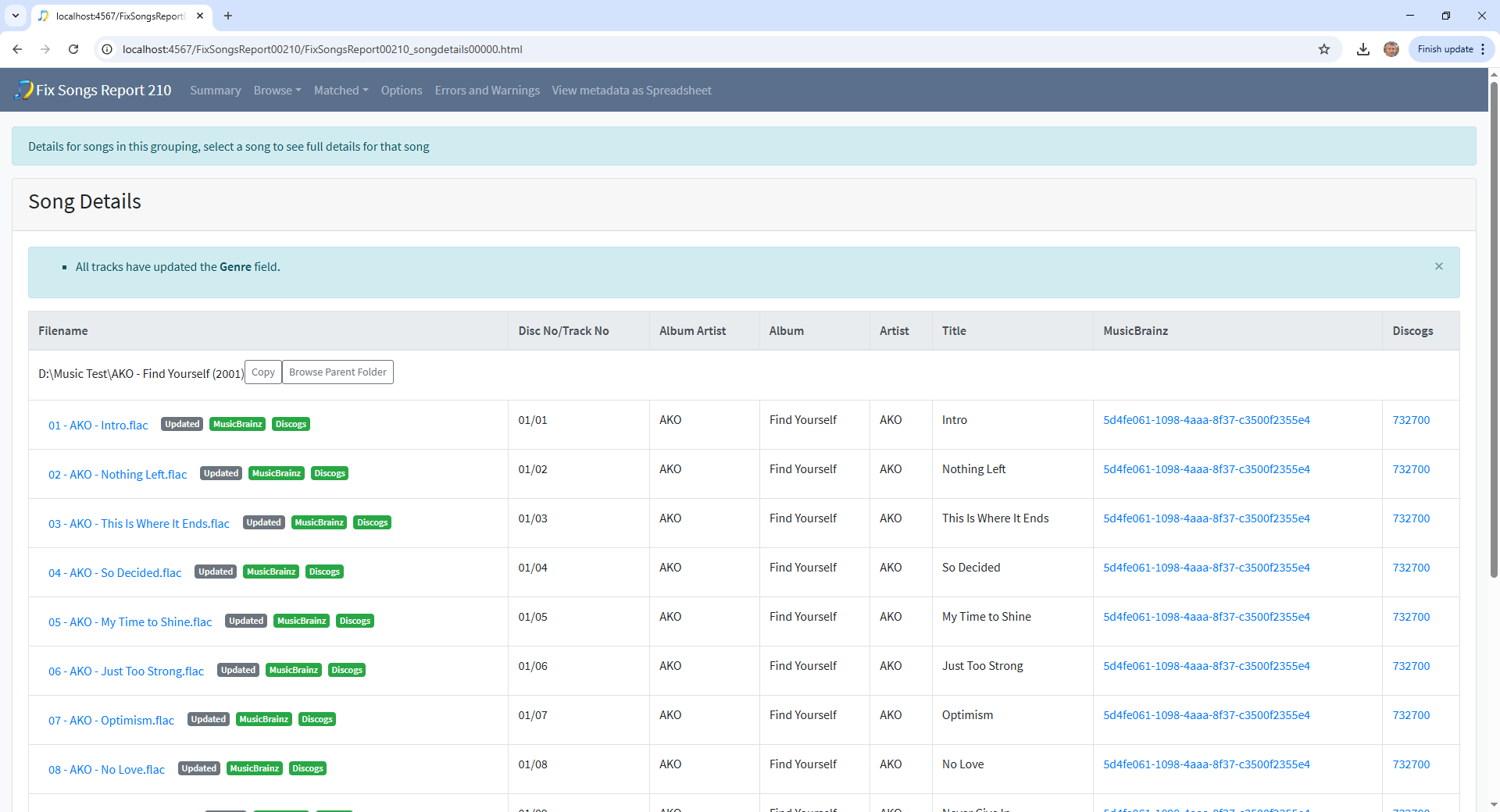
Hi, you can see the results in the Lite report. View as Spreadsheet shows all the results with values added in yellow background, and values modified in green. The Browse section of the report lets you navigate by artist, album, composer or folder down and see the tracks, together with all changes showing before and after values.
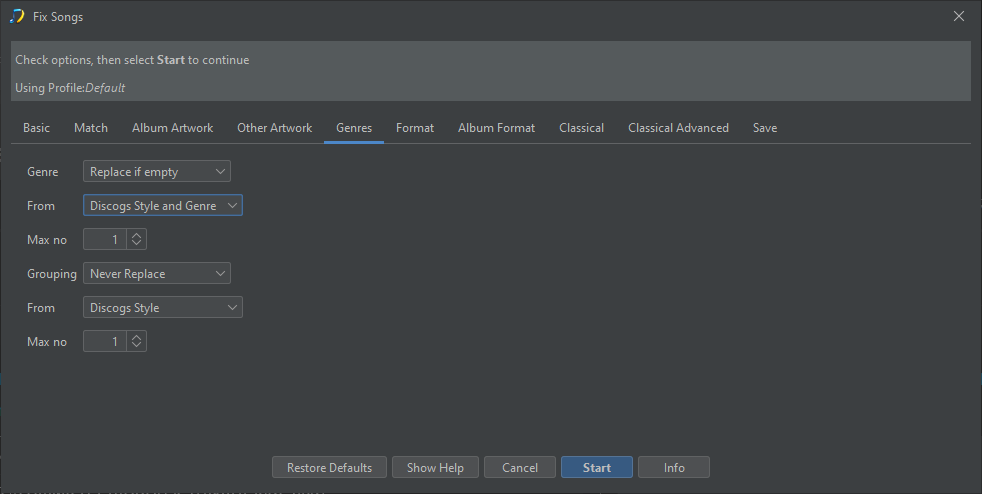
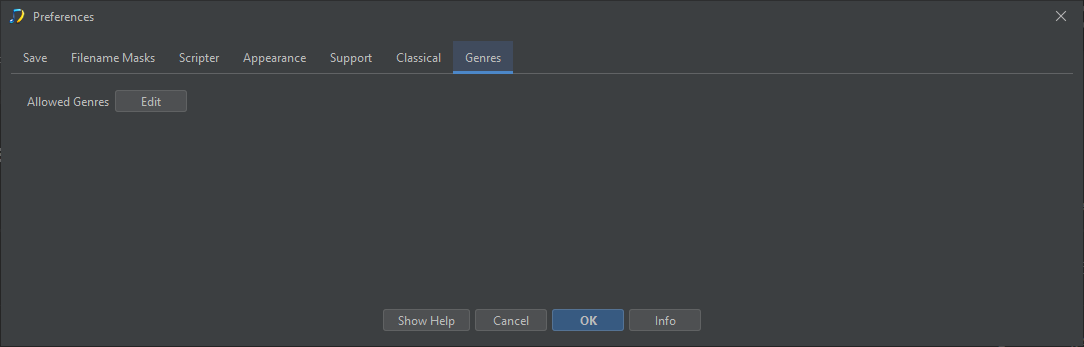
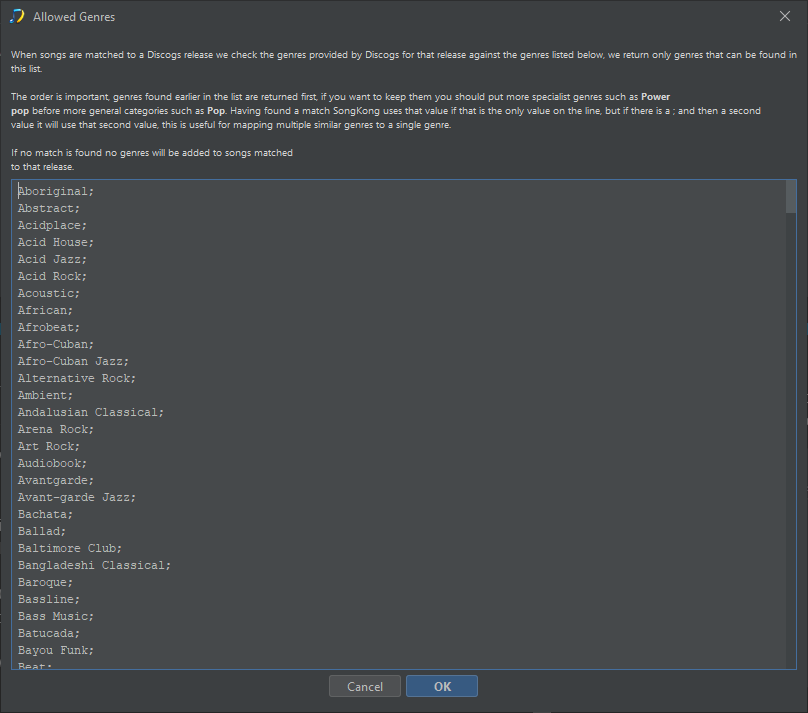
However, by default SongKong does not actually add genre because it is a subjective value rather than objectively correct like artist or title so below I have created step by step instructions for you so you can try it out.
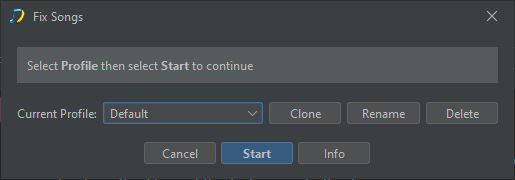
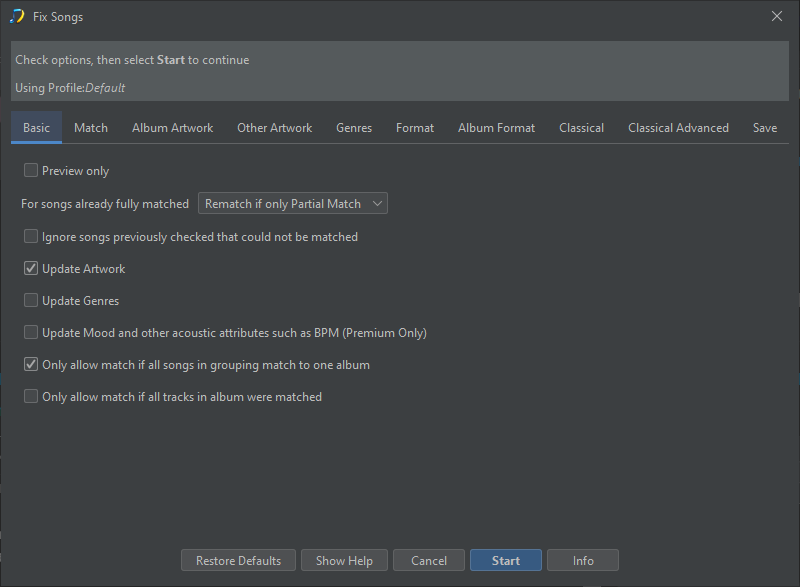
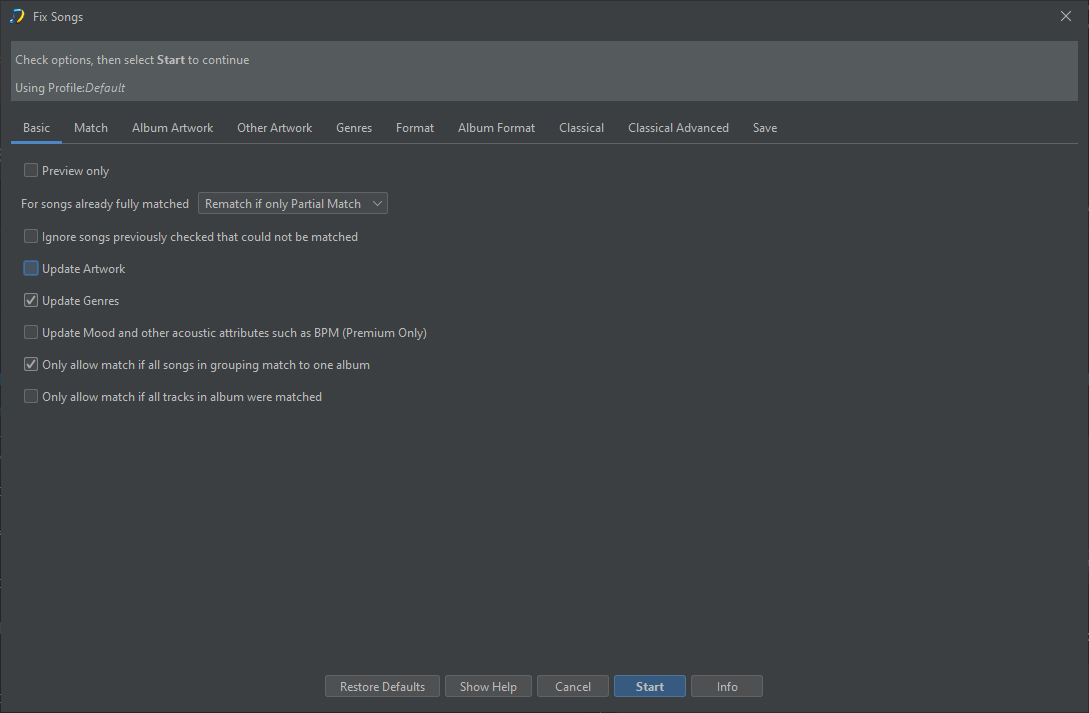
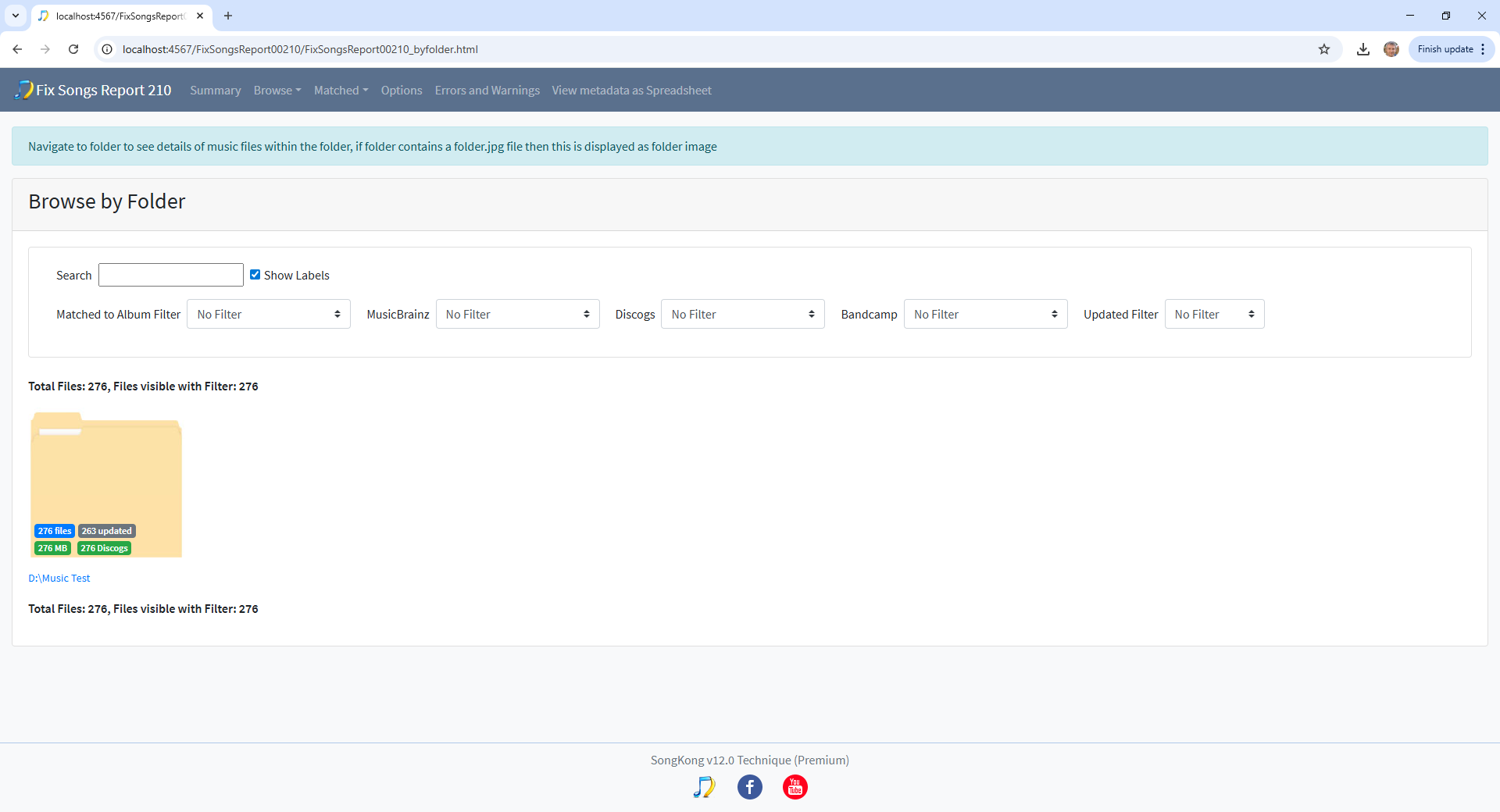
On Basic tab enable Update Genres and disable Update Artwork

Select Start
Wait for Report Creation
For a quick scan of results select View as Spreadsheet, this will download spreadsheet file to your Downloads folder (on Windows) and then you can open in a spreadsheet application
On the Basic tab scroll along to the Genres column, you should see most rows now have a value for genre.
Some will not because:
See for the folder at the top it says All tracks have updated the Genre field.
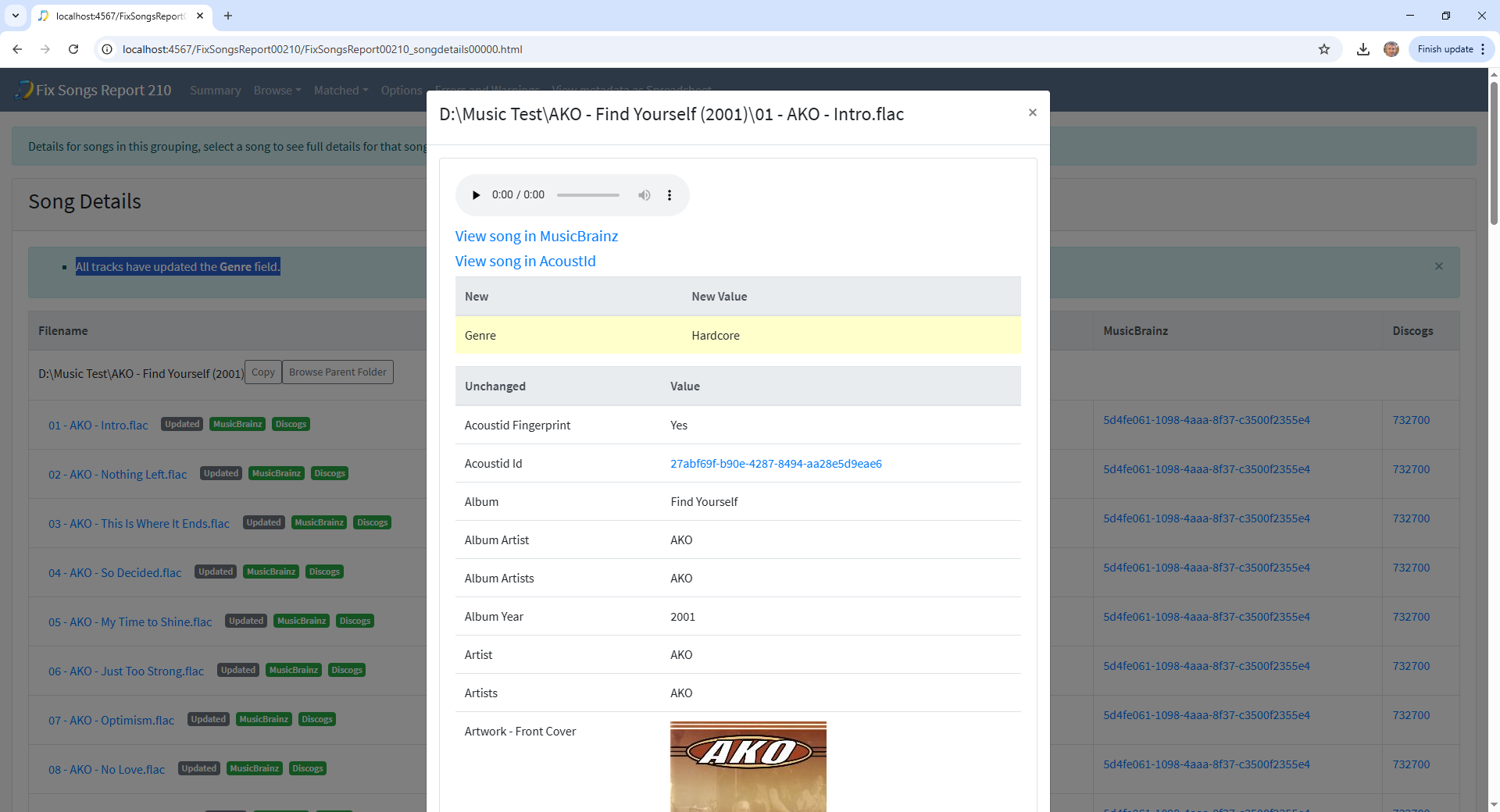
Select a file and you can see the changes made, for example here we have added the Genre Hardcore